How to highlight text in a PDF on Mac, iPhone and iPad
Highlight, underline or strike out text in a PDF with Preview on Mac or PDF Max on iPhone and iPad, change the color, and fix a PDF that will not highlight.
Direct answer
How do you highlight text in a PDF on a Mac, iPhone or iPad?
On a Mac, open the PDF in Preview, select the text and click the Highlight button in the toolbar, or choose Tools, Annotate, Highlight Text. On iPhone and iPad, open the PDF in PDF Max, tap Highlight on the Home tab and drag across the words. Both add a highlight annotation on top of the text, so it can be recolored or removed later. A scanned page needs text recognition first.
To highlight text in a PDF, select the words and apply a highlight annotation. In Preview on Mac, select the text and click the Highlight button. In PDF Max on iPhone, iPad or Mac, tap Highlight on the Home tab and drag across the text.
| Where you are working | Start here |
|---|---|
| Mac, with the built-in Preview app | Highlight in Preview |
| iPhone or iPad | Highlight in PDF Max |
| You want an underline or a strikethrough | Underline and strike out |
| The text will not select | Why a PDF will not highlight |
Highlight text in Preview on Mac
- Open the PDF in Preview.
- Select the text you want to mark.
- Click the Highlight button in the toolbar, or choose Tools → Annotate → Highlight Text.
To highlight as you read, click the Highlight button first so it stays on, then select one passage after another. Click it again to turn it off.
To change the color, click the arrow beside the Highlight button and pick another color. The same menu has underline and strikethrough.
To see every highlight in a long document, choose View → Highlights and Notes.
Highlight text in PDF Max on iPhone, iPad and Mac
On an iPhone or iPad, the Markup tools in Files draw with a highlighter pen. That is a freehand stroke, not a highlight attached to the words, so it does not follow the lines of text. PDF Max highlights the text itself.
- Open the PDF in PDF Max.
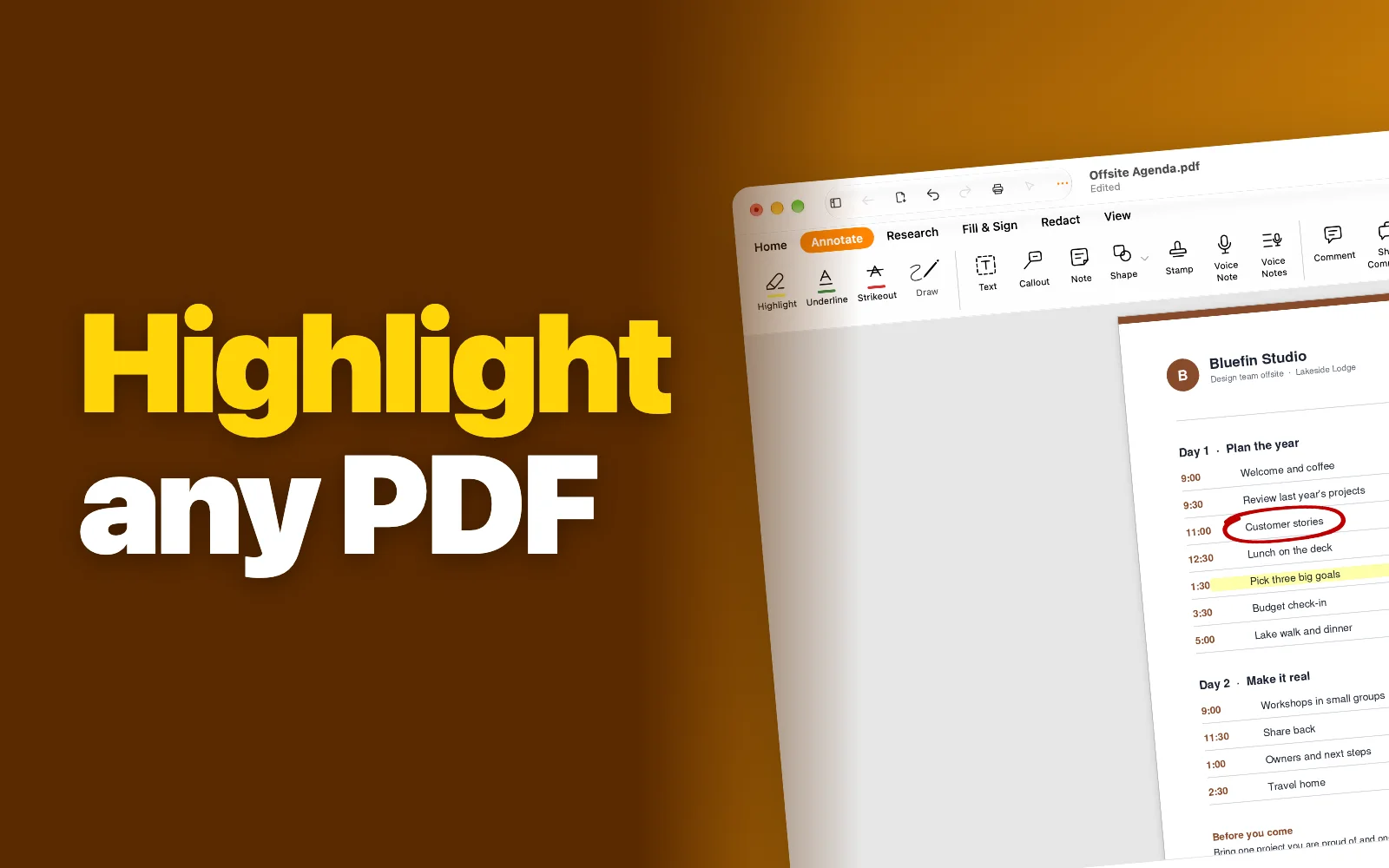
- On the Home tab, tap Highlight.
- Drag across the words. The highlight follows the lines of text.
- Keep going through the document. Tap Highlight again when you have finished.
To change the color, use the color control on the Highlight button before you drag, or select a finished highlight and change it on the Annotation tab.
To add a note to a highlight, select it and add a comment. Annotate → Show Comments lists every comment in the file.
Underline, strike out or squiggle
Open the Annotate tab in PDF Max. Beside Highlight you will find Underline and Strikeout, with a squiggly underline for wording you want to query. They work the same way: choose the tool, then drag across the text.
A strikeout marks text for deletion in a review. It does not remove the words. To remove content for good, use redaction.
Why a PDF will not highlight
- The page is a scan. A scanned page is a picture of text, so there are no words to select. Make the scan searchable first, or mark it with the pen or a rectangle.
- A different tool is active. Finish drawing or typing, then choose Highlight again.
- The file is restricted. Some PDFs are locked against comments by their owner. Ask for a copy you may annotate.
- The text is part of an image or a flattened page. See how to check if a PDF is flattened.
Will other people see my highlights?
Yes. A highlight is saved in the PDF as a standard annotation, so it shows in Preview, Acrobat and other PDF apps. To send a clean copy, remove the highlights from a duplicate first.
What it costs
Highlighting, underlining, strikeouts, drawing and comments are included in PDF Max Free on iPhone, iPad, Mac and Android.