How to fill out a PDF form on Android
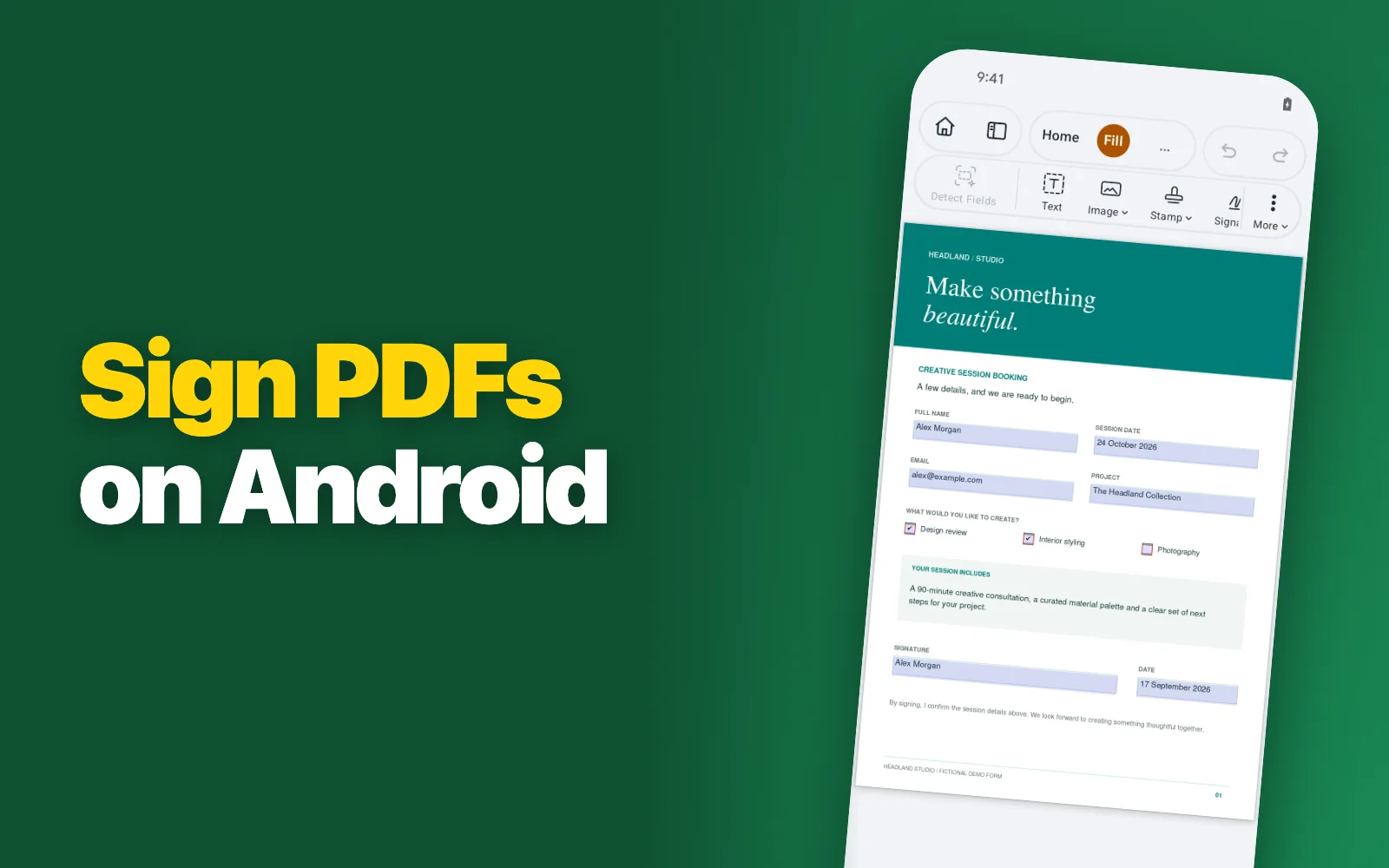
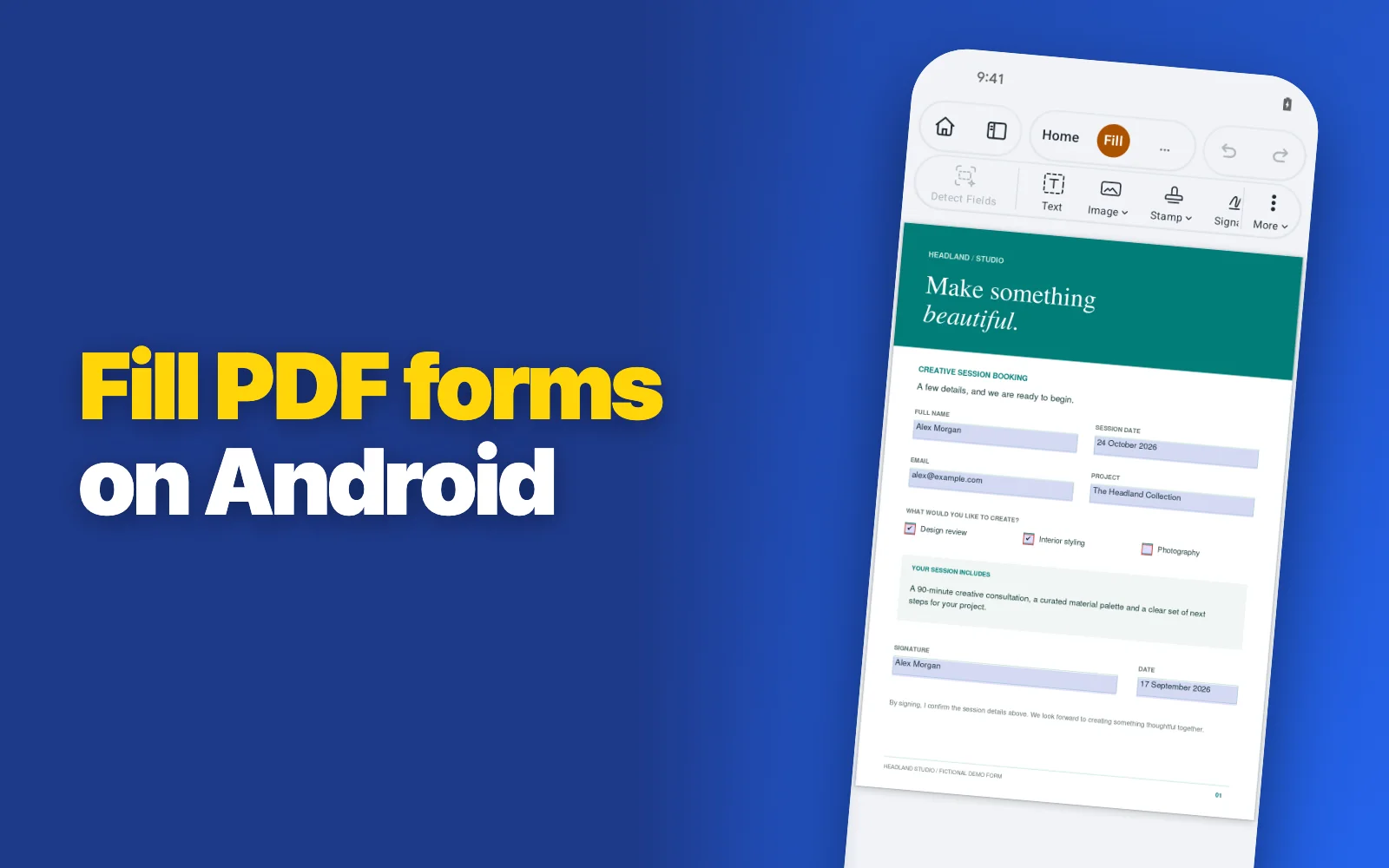
Fill in a PDF form on an Android phone or tablet with PDF Max: type in fillable fields, or add text, check marks, dates and a signature to a form that has none.
Direct answer
How do I fill out a PDF form on an Android phone or tablet?
Open the form in PDF Max. If it has fillable fields, tap a field and type; the bar above the keyboard moves to the next field. If nothing happens when you tap a blank, the form is a plain page: open the Fill & Sign tab and use Text to type, Checkmark to tick boxes, Date for today's date and Signature to sign. Then tap More options, Document, Save, and share the PDF. Filling and signing are free.
PDF forms come in two kinds, and they look the same until you tap them. A fillable form has real fields: tap a blank and a cursor appears. A flat form is a picture of a form, made to be printed. Both can be completed on an Android phone; the tools differ.
This guide uses PDF Max for Android, which runs on Android 11 or later. Filling and signing are free.
1. Open the form
- From the file: tap the PDF in your email or the Files app and choose PDF Max.
- From the app: open PDF Max. On Home, tap Open and pick the file.
Tap the first blank. If a cursor appears, follow the fillable steps. If nothing happens, go to a form without fields.
2. Fill a form that has fields
- Tap a field and type.
- Use the bar above the keyboard to move: Previous field, Next field, and Done to close the keyboard.
- Tap a checkbox or radio button to select it.
- A drop-down field shows its choices. Some also offer Enter a value… for an answer that is not listed.
- A date field opens a date picker.
The Fill & Sign tab adds help for long forms. On a phone, reach it with the … button (More options), then Tabs; its tab is labeled Fill.
- Next jumps to the next field that is still empty. Previous goes back.
- Clear empties the current field.
- More → Review opens Review & Finish, which shows whether any fields remain. Choose Keep Filling to go back or Finish when everything is complete.
To start over, choose Reset All Fields under More.
3. Fill a form that has no fields
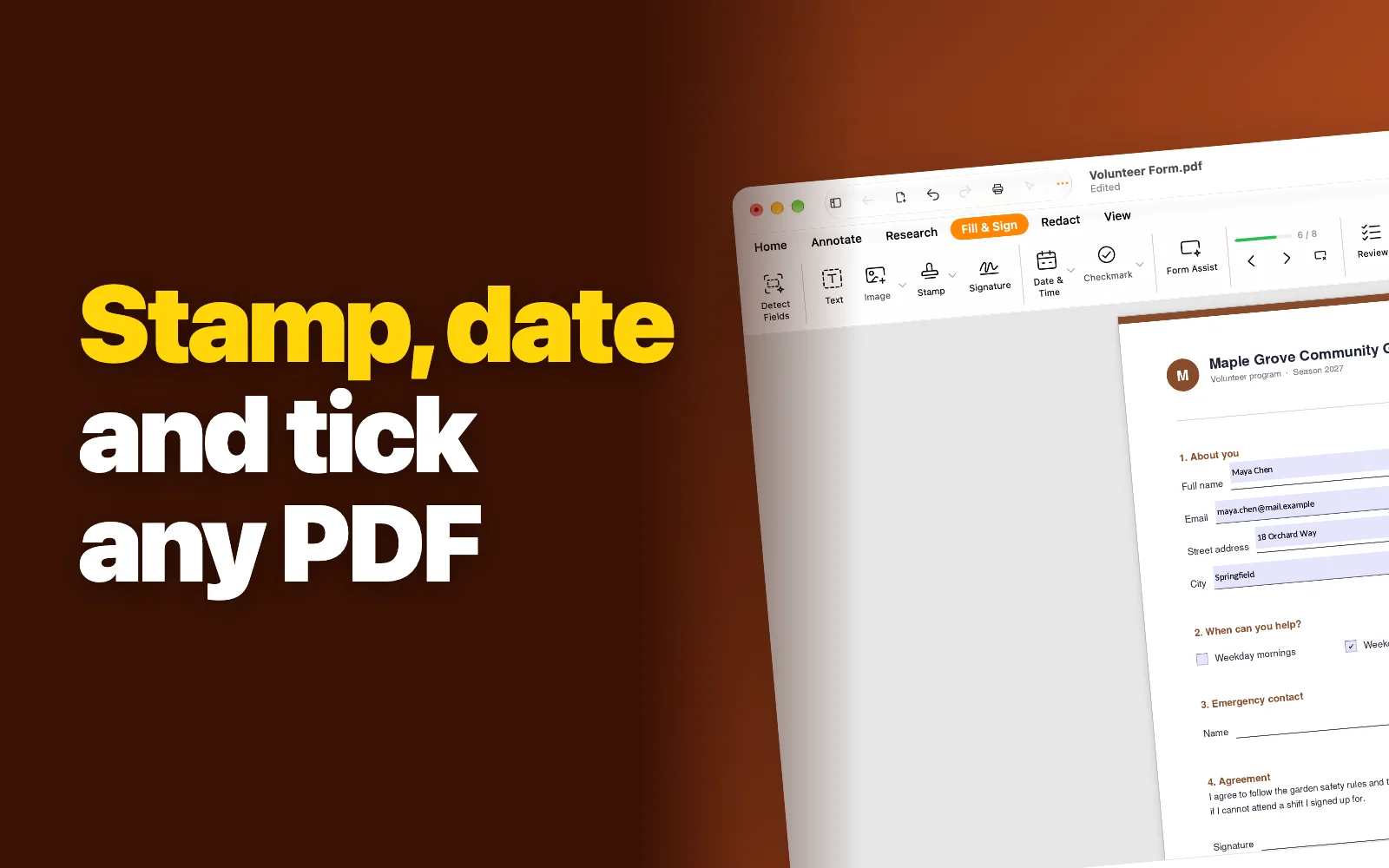
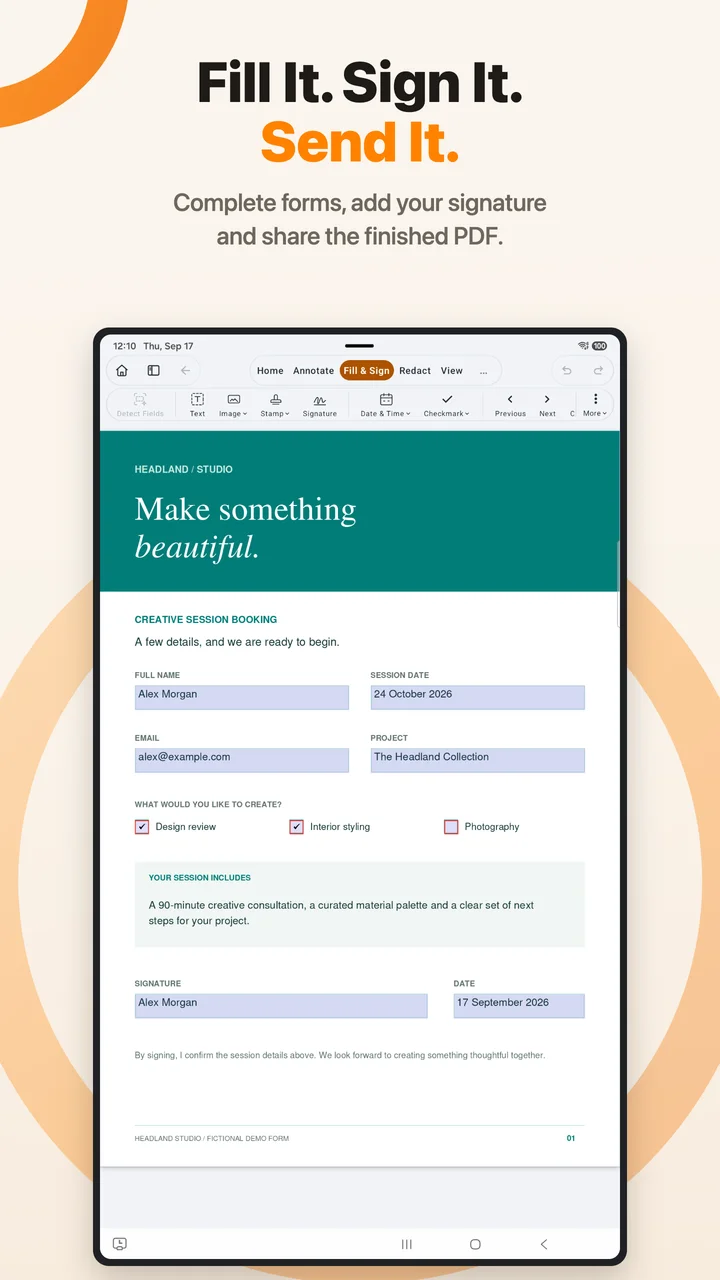
Everything you need is on the Fill & Sign tab.
- Text: tap Text, tap a blank on the page and type. Drag the text to sit on the line, and zoom in with two fingers for small boxes.
- Check marks: tap Checkmark, then tap each box. Its menu also has Cross, in black, green or red. Use black on official forms.
- Date: tap Date, pick a format and tap the page. Today's date is placed as text you can still edit.
- Signature: tap Signature, create one by drawing, typing or choosing an image, tap Create, then tap the signature line. See how to sign a PDF on Android.
- Stamp: tap Stamp for ready-made stamps such as Approved or Sign Here.
Tap Done when you finish with a tool.
4. Check your answers
- Scroll through every page. Forms often continue past the signature.
- Look for required fields you skipped, initials on each page, and a date beside the signature.
- Zoom in on anything typed into a small box and make sure it is not cut off.
5. Save and send
PDF Max on Android does not write changes to the file until you save.
- Tap …, choose Document, then Save. Use Save As… to keep the blank form and save the completed one under a new name.
- Tap …, choose Document, then Share, and pick your email or messaging app.
Open the saved file once more from Recents before sending, to confirm the answers are there.
What it costs
Filling fields, typing on the page, check marks, dates, stamps and creating a signature are free. Reusing a saved signature needs Premium in PDF Max, or the separate PDF Max Pro app. Building your own fillable form, with the Forms tab, is part of Premium.
Common questions
Why can't I type in the form?
It has no fields. Use Text on the Fill & Sign tab to type on top of the page.
My answers disappeared after I sent the form. Why?
Either the file was not saved before sharing, or the original blank form was attached. Save, reopen to check, then share from inside PDF Max.
Can I fill a form that I photographed?
Yes. Turn the photo into a PDF first, with Scan to PDF or Images to PDF on the Home screen, then fill it like any flat form.
Can I fill a PDF form in Chrome or Google Drive?
Drive can fill simple fillable forms on many phones. It cannot type on a flat form, and its support for check marks, dates and signatures is limited.