How to sign a PDF on iPhone, iPad and Mac without printing
Add your signature to a PDF on iPhone, iPad or Mac with Markup, Preview or PDF Max: draw, type or use a photo of it, place it, and send a copy nobody can move.
Direct answer
How do you sign a PDF on an iPhone, iPad or Mac without printing it?
On an iPhone or iPad, open the PDF in Files, tap Markup, tap the plus button and choose Add Signature. On a Mac, open it in Preview, show the Markup toolbar, click Sign and place your signature. In PDF Max, open the Fill & Sign tab, tap Signature, then draw, type or import one and tap where it goes. Save, then send a flattened copy so the signature cannot be moved.
You do not need a printer or a scanner to sign a PDF. An iPhone, iPad or Mac can place your signature on the page, and you send the signed file back.
| Where you are working | Start here |
|---|---|
| iPhone or iPad, built-in tools | Sign with Markup |
| Mac, built-in Preview | Sign in Preview |
| A form with fields, dates and initials too | Sign in PDF Max |
| You are sending it to someone else | Send a copy that cannot be changed |
Sign with Markup on iPhone and iPad
- Save the PDF to the Files app and open it.
- Tap the Markup button.
- Tap + and choose Add Signature.
- Sign with your finger or Apple Pencil, then tap Done. Your iPhone keeps the signature for next time.
- Drag the signature to the line and pull a corner to resize it.
- Tap Done to save.
Sign in Preview on Mac
- Open the PDF in Preview.
- Click the Show Markup Toolbar button, then click Sign.
- The first time, choose Create Signature and make one with the trackpad, the camera (hold a signed sheet of white paper up to it) or your iPhone.
- Click the signature to drop it on the page, then drag and resize it.
- Choose File → Save.
Sign in PDF Max
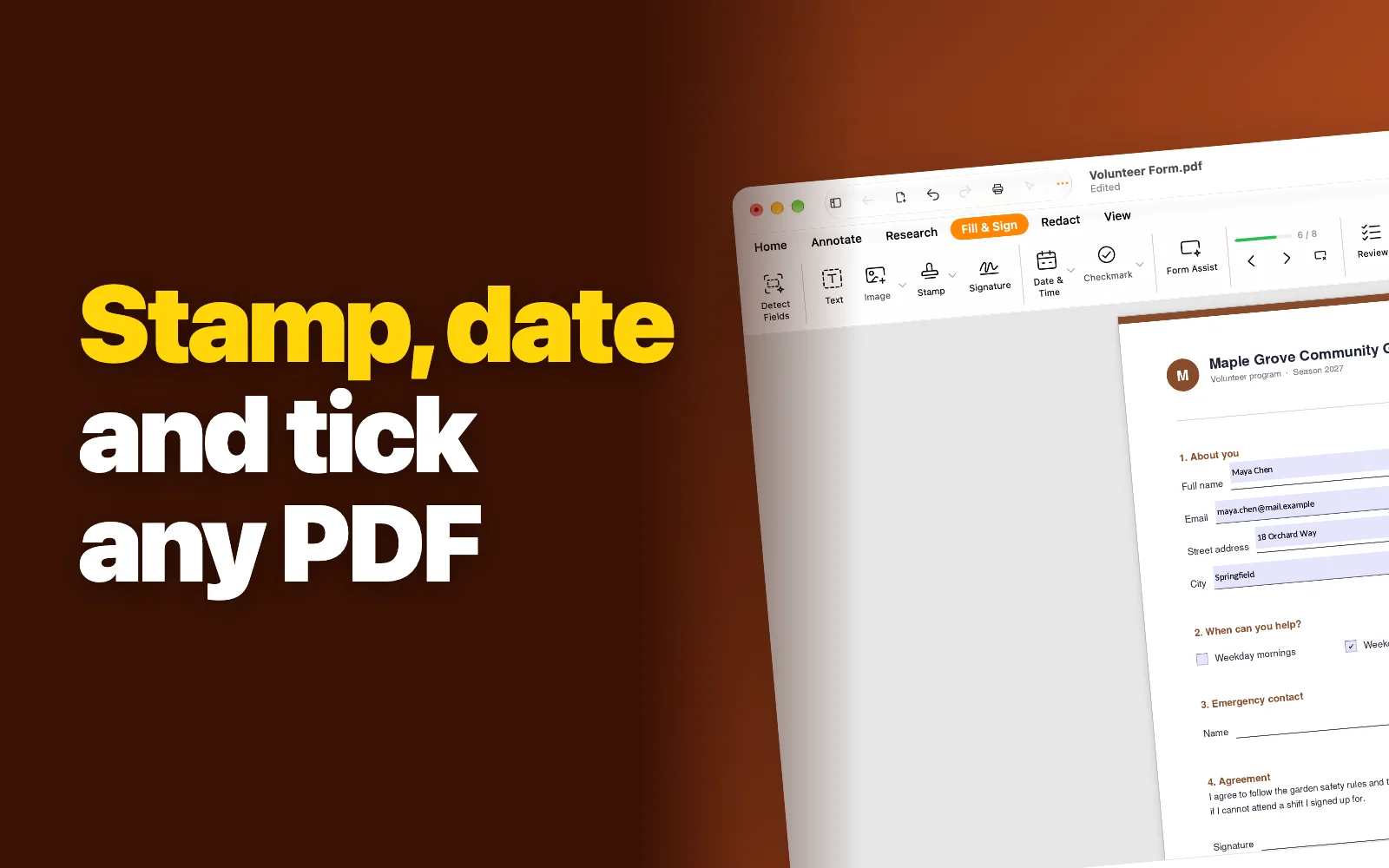
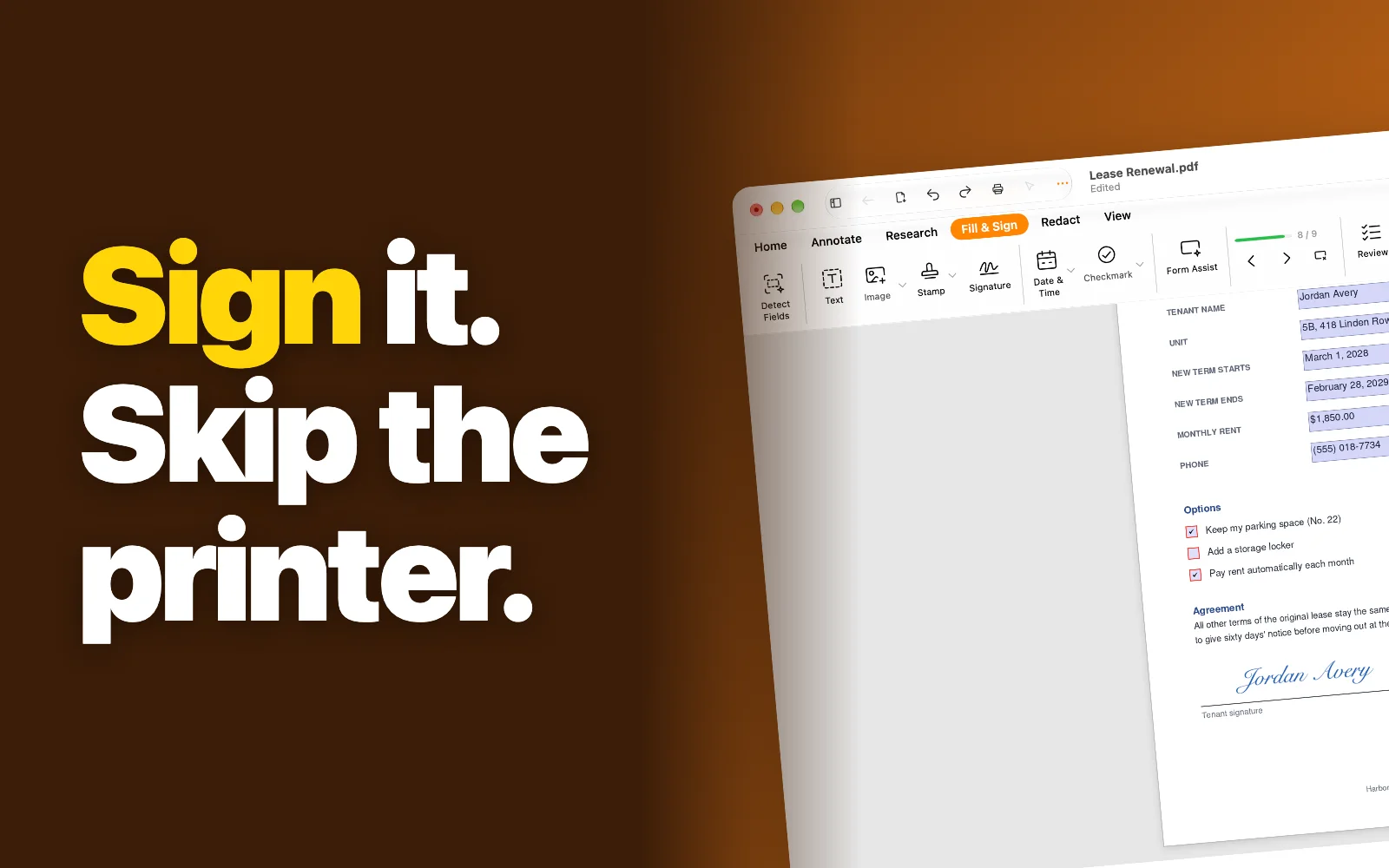
PDF Max keeps signing next to the other things a form asks for: typed answers, check marks, dates and initials.
- Open the PDF and go to the Fill & Sign tab.
- Tap Signature.
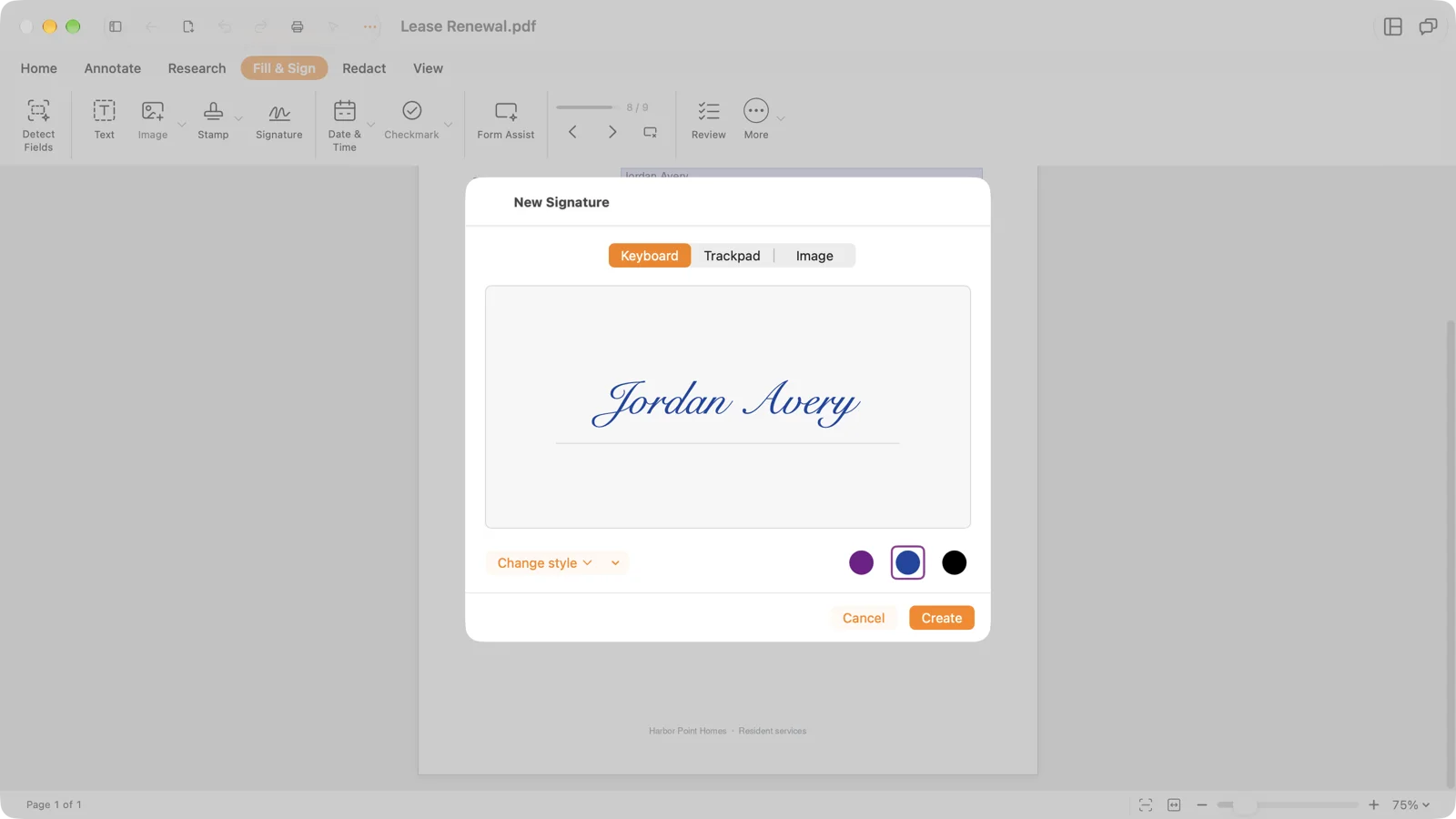
- In New Signature, choose how to make it:
- Draw it with a finger, Apple Pencil or trackpad, with a choice of stroke width and ink color;
- Keyboard to type your name and pick a handwriting style;
- Image to use a photo or scan of your signature.
- Tap Create, then tap the page where the signature belongs.
- Drag to position it and use the handles to resize it.
- Use Text and Date & Time on the same tab for the printed name and date beside it.
Send a copy that cannot be changed
A signature you place is an object on the page. Until the file is flattened, anyone who opens it in an editor can select it, move it or copy it.
Before you send a signed document, make a flattened copy. Flattening merges the signature and your answers into the page. Keep your editable original, and send the flattened one. See how to fill, sign and flatten a PDF form and what flattening does.
Is this a legal signature?
What these steps add is an image of your handwritten signature, often called an electronic signature. Many everyday documents accept one. It is not a certificate-based digital signature, which proves who signed and that the file has not changed since. If the other party asks for a digital signature or a named signing service, use what they specify. For anything important, ask them which kind they accept.
What it costs
Placing a signature is included in PDF Max Free. Saving signatures to reuse from My Signatures needs PDF Max Pro. Markup and Preview are part of iOS, iPadOS and macOS.
Common questions
Can I sign a PDF on my iPhone for free?
Yes. Markup in the Files app is built in, and PDF Max Free places a signature at no cost.
Why can I not tap on the signature line?
The form may be a flat scan with no fields. Place the signature anywhere on the page with the steps above. It does not need a field.
Can I add my initials on every page?
Yes. Create a second signature for your initials and place it on each page.