How to open and edit Excel files on a Mac without Excel
Three ways to open and edit an XLSX file on a Mac without Microsoft Excel: Numbers, LibreOffice Calc and Mobeera Office, and how to send back a working Excel file.
Direct answer
How do I open and edit an Excel file on a Mac without Microsoft Excel?
Open the XLSX file in another spreadsheet app. Numbers comes with the Mac and converts the workbook, so you export an Excel copy when you finish. LibreOffice Calc is free and saves Excel format if you choose it. Mobeera Office opens and saves XLSX directly: Control-click the file, choose Open With, edit, then File, Save. Whichever you use, reopen the saved file and check the totals before sending it.
You do not need Microsoft Excel, or a Microsoft 365 subscription, to work on an Excel file on a Mac. An .xlsx workbook opens in several Mac apps. What differs is whether the app edits the Excel file itself or converts it first.
Which Mac apps open Excel files?
| App | Cost | How it handles XLSX |
|---|---|---|
| Apple Numbers | Free with the Mac | Converts to Numbers; export an Excel copy to send back |
| LibreOffice Calc | Free | Opens XLSX; choose Excel format when saving |
| Mobeera Office | Free to try; one-time purchase | Opens and saves XLSX directly |
Apple Numbers
Double-click may already open the file in Numbers. It lays sheets out as tables on a canvas, which is not how Excel works, so a workbook with several ranges on one sheet can arrive looking different. When you finish, choose File → Export To → Excel. Apple's conversion guide has the steps.
LibreOffice Calc
LibreOffice is a free, open-source suite. Calc is close to Excel in how it works. When saving, keep the Excel format when it asks; its own format is .ods.
Mobeera Office
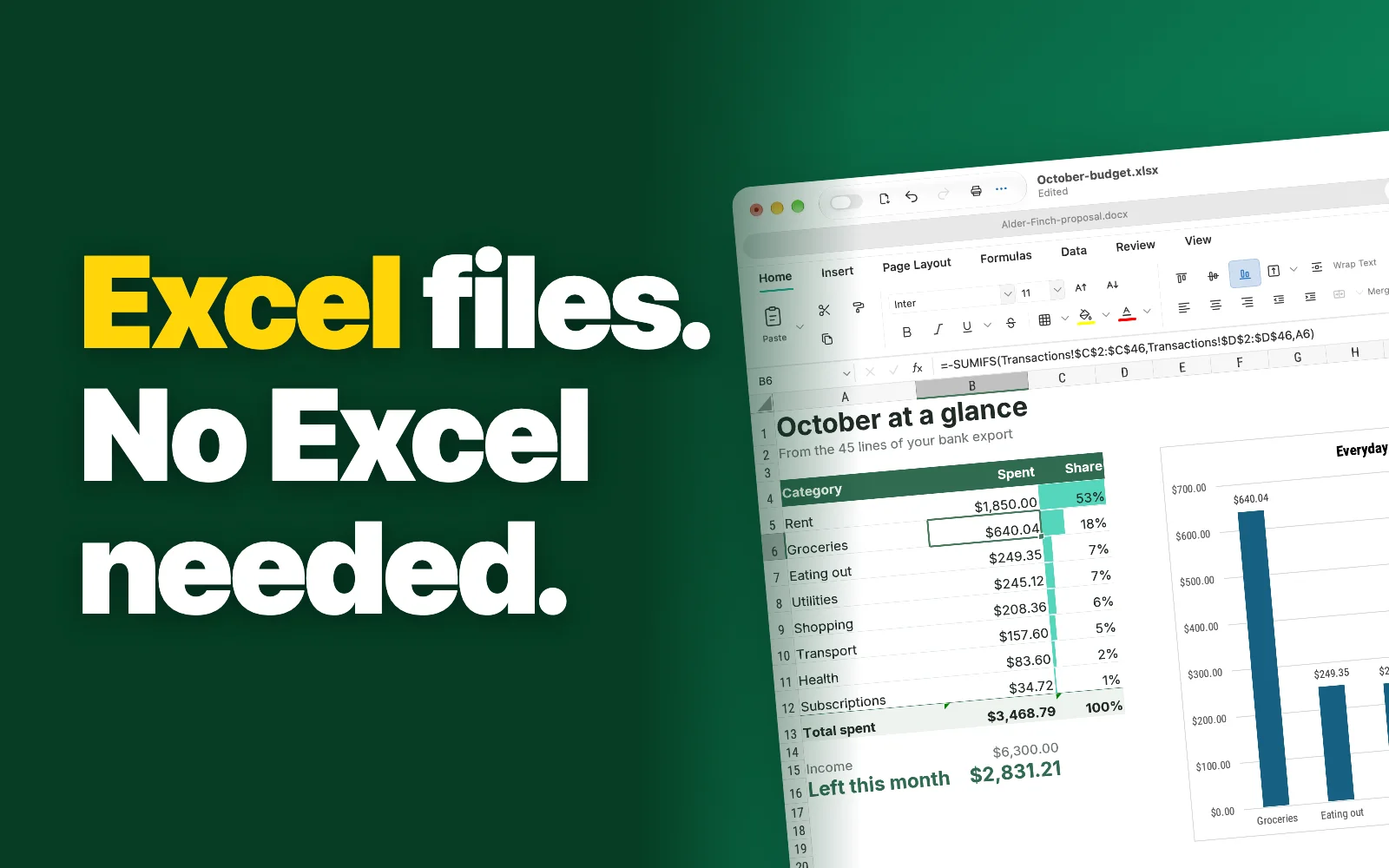
Mobeera Office edits the .xlsx file itself, with the tabs Excel users expect: Home, Insert, Page Layout, Formulas, Data, Review and View. It is the one used in the steps below.
1. Open the workbook
Keep the original. In Finder, select the file and choose File → Duplicate, then Control-click the copy, choose Open With and pick Mobeera Office.
The free plan edits the first 50 rows of a sheet; later rows open for reading. Lifetime access removes the limit.
2. Edit cells and formulas
Click a cell and type to replace it, or double-click to edit what is there. Formulas are written as in Excel, starting with =, and the Formulas tab lists functions by kind.
Click a cell before you overwrite it. If the formula bar shows something starting with =, typing a number replaces the calculation.
3. Sort, filter and chart
- Data has sorting and filters. Click inside the table first so rows stay together.
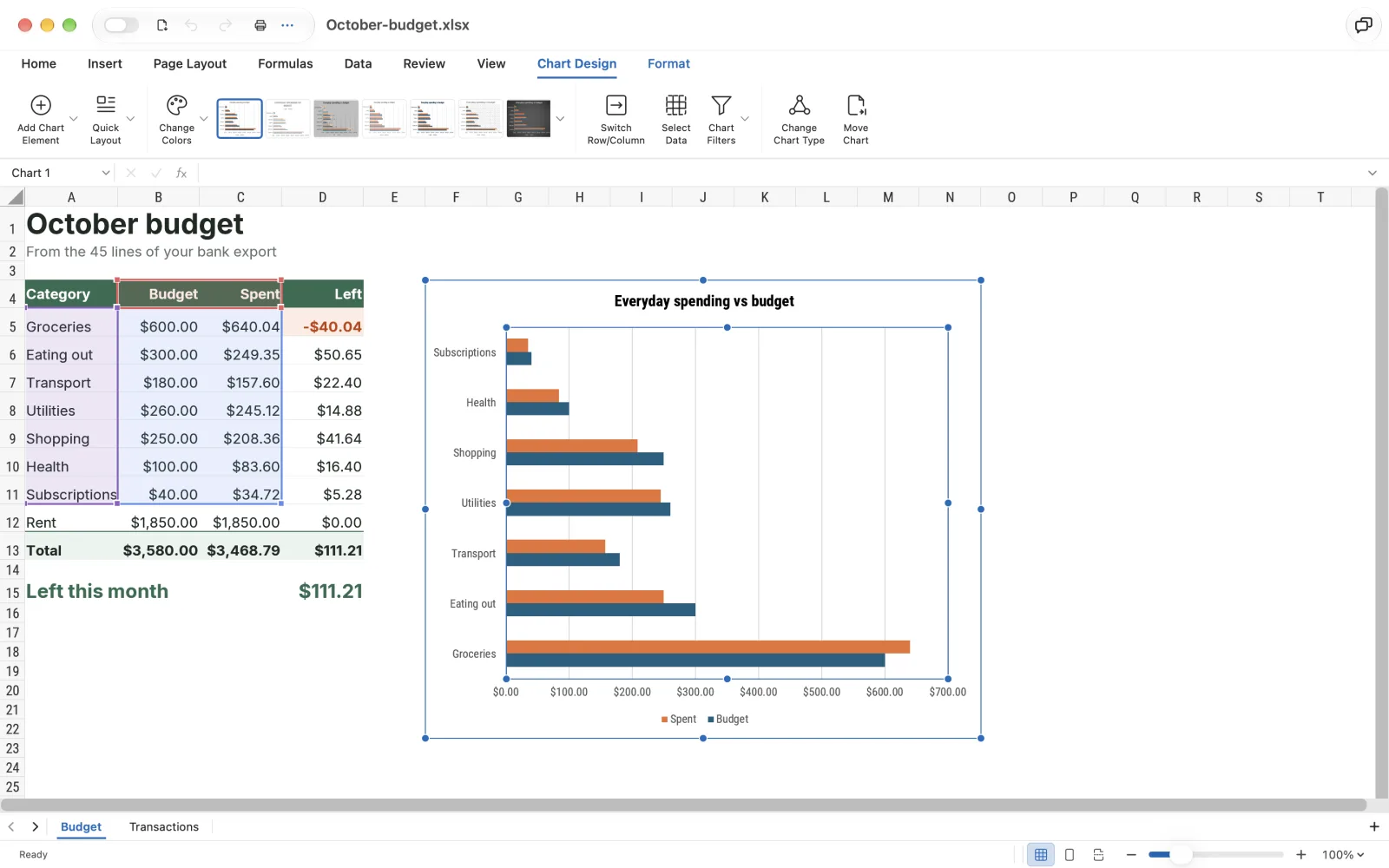
- Insert adds a chart from the selected range, plus tables and pictures.
- Page Layout sets margins, orientation and the print area before you print or make a PDF.
4. Save as Excel
Choose File → Save, or press Command-S. The file stays an .xlsx workbook. Use File → Save As for a new name.
5. Check before you send
Close the file and open it again from Finder, then check:
- the totals match what you expect;
- no cell shows an error such as
#REF!or#NAME?; - every sheet is still there, with its name;
- charts still show the right data.
Common questions
Can I open an Excel file on a Mac for free?
Yes. Numbers and LibreOffice Calc are free. Mobeera Office opens any workbook for reading and edits the first 50 rows free.
Do macros work?
No. Macros written for Excel need Excel. The data and formulas in the workbook still open.
Why does my spreadsheet look different in Numbers?
Numbers converts each sheet into tables on a canvas and replaces features it does not have. An app that keeps the Excel grid shows the workbook closer to how it was made.
Can I buy an office suite for Mac once?
Yes. See Microsoft Office alternatives for Mac with a one-time purchase.