How to edit an Excel spreadsheet on iPad
Open an XLSX file on iPad, edit cells and formulas, sort, filter and chart, and send back a working Excel file or a PDF. Steps, keyboard tips and free limits.
Direct answer
How do I edit an Excel spreadsheet on an iPad?
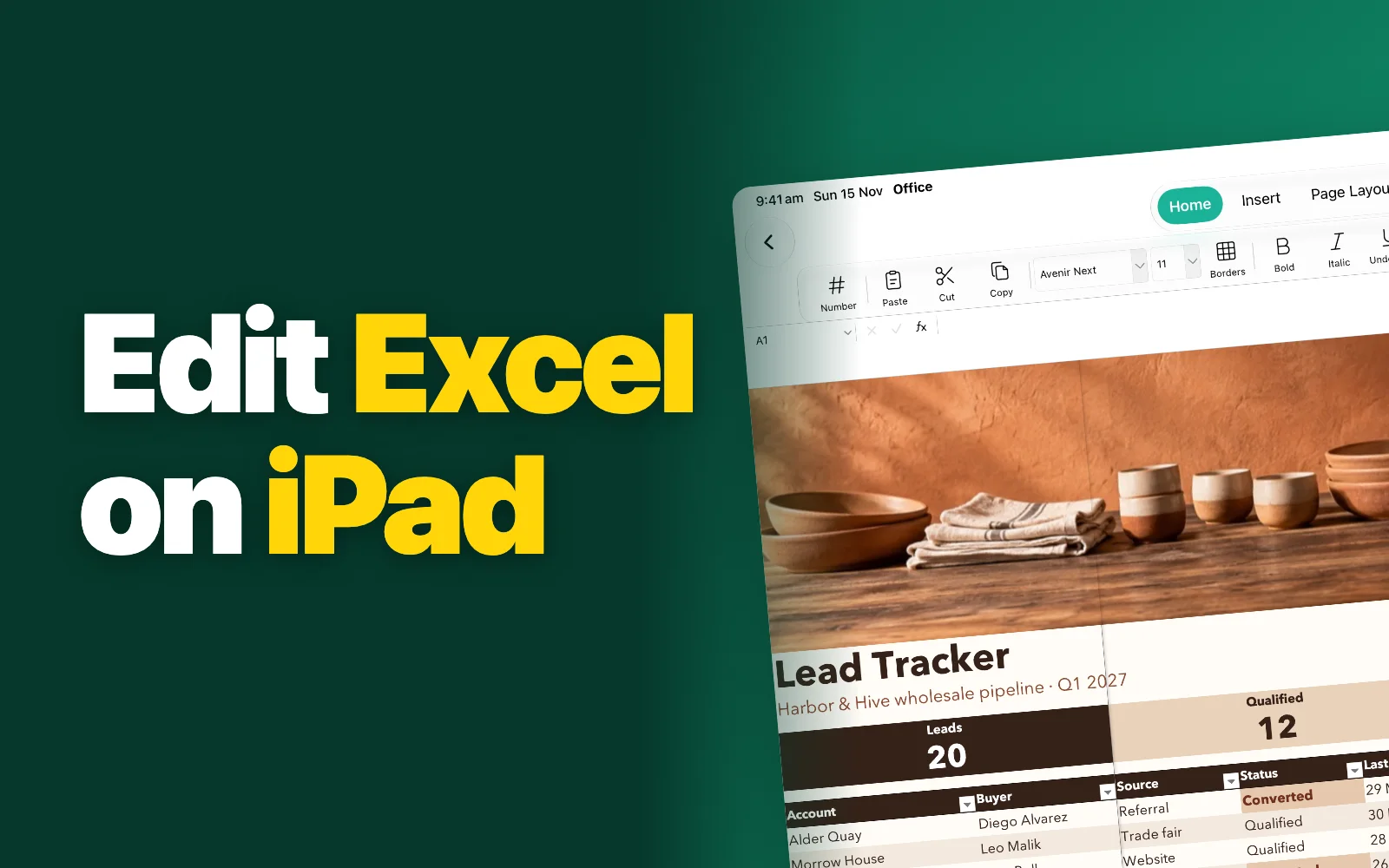
Save the Excel file to the Files app, then open it in an office app that edits XLSX. In Mobeera Office, tap Open on the Home screen and choose the file. Double-tap a cell to change it, and use the Formulas and Data tabs for functions, sorting and filters. Changes save automatically. To send it back, tap the More options button, choose Document, then Share for the Excel file or Export as PDF.
An iPad screen shows enough rows and columns to work on a real workbook, and the Excel file does not need converting first. An .xlsx opens directly in an office app that supports the format, with its sheets, formulas and charts, and you send back the same kind of file.
This guide uses Mobeera Office, which has spreadsheet, document, presentation and PDF editors in one iPad app.
Before you start
- Install Mobeera Office from the App Store. On the Home Screen the app is named Office.
- Save the workbook where you can find it. In Mail or Messages, touch and hold the attachment and choose Save to Files.
- Mobeera Office is free to download. On the free plan you can edit rows 1 to 50 of the first sheet; the rest opens for reading. A yearly plan or lifetime access removes the limit.
1. Open the workbook
- Open Mobeera Office. The sidebar lists Home, Templates, My Files and Recents.
- On Home, tap Open.
- Find the Excel file and tap it.
.xlsx, .xlsm, .csv and .tsv files open. The older .xls format does not; ask the sender to save the workbook as .xlsx, or open it in Numbers and export an Excel copy.
The sheet tabs are at the bottom of the screen. Tap one to switch sheets.
2. Change a cell
- Tap a cell to select it. Double-tap to edit what is in it.
- Type the new value and confirm. Formulas that depend on the cell recalculate at once.
- Drag the selection handles to select a range.
A hardware keyboard makes entering a column of numbers much quicker than the on-screen one, and Command-S saves at once.
3. Work with formulas
Start a formula with =, as in Excel: =SUM(B2:B13), =AVERAGE(C2:C20), =IF(D2>0,"Yes","No"). The Formulas tab lists functions by kind.
Before you change a number, tap the cell and read what it contains. If it starts with =, it is a formula; typing a number over it replaces the calculation.
4. Sort, filter, format and chart
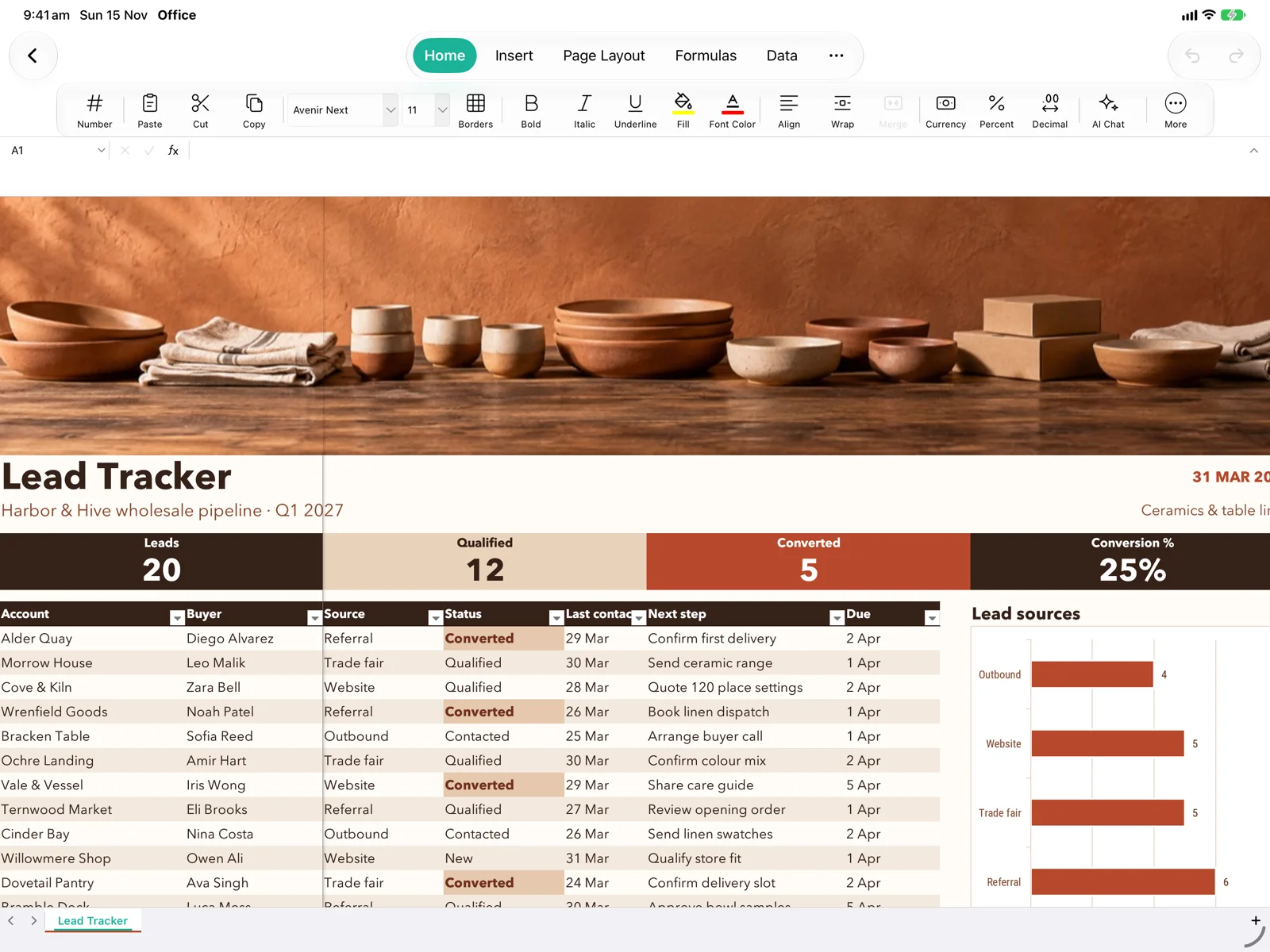
The tabs across the top are Home, Insert, Page Layout, Formulas, Data, Review and View. An iPad shows several at once; the rest are under the … button (More options), in Tabs.
- Data has sorting and filters. Select a cell inside the table first so the whole table sorts together.
- Home has number formats (currency, percent, dates), fonts, fill color, borders and alignment.
- Insert adds charts, tables and pictures.
- Page Layout sets orientation, margins and the print area.
5. Save and send it back
Auto-save is on by default, so edits are written to the file when you close the workbook. To keep the original and save yours under a new name, tap …, choose Document, then Save a Copy….
To send the result, tap …, choose Document, then:
- Share to send the Excel file. Send this when the other person needs to keep working in it.
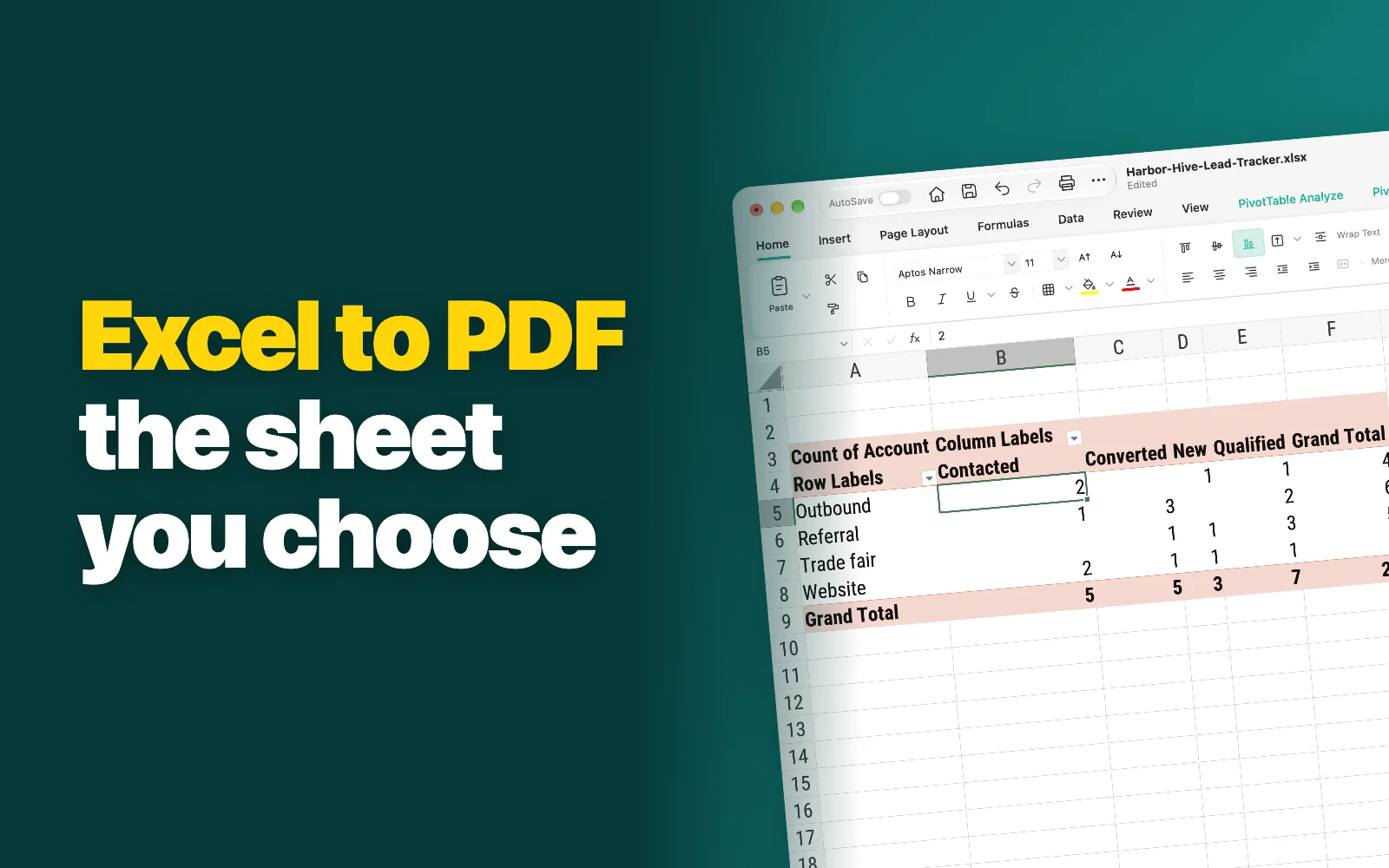
- Export as PDF… to send a fixed copy. You choose the active sheet, the whole workbook, a selection or a table. See how to convert Excel to PDF.
Before you send, open the file once more from Recents and check the totals.
What about Apple Numbers?
Numbers is free and opens Excel files. It converts the workbook to its own format, so you must export an Excel copy before sending it back, and features Numbers does not have can change on the way. Apple describes the steps in its conversion guide.
Common questions
Can I edit an Excel file on iPad for free?
Yes, within limits. Mobeera Office edits rows 1 to 50 of the first sheet on the free plan. Numbers is free and works through conversion.
Will my formulas and charts still work?
Common formulas, formatting and charts open as they were made. Macros do not run. See what is tested and what still differs, and check an important workbook with the person you send it to.
Can AI help with the spreadsheet?
If you want it to. AI Chat works with your own API key, added under Settings → AI Chat, and can explain a formula, find errors or build a summary. See how Mobeera Office works with AI.