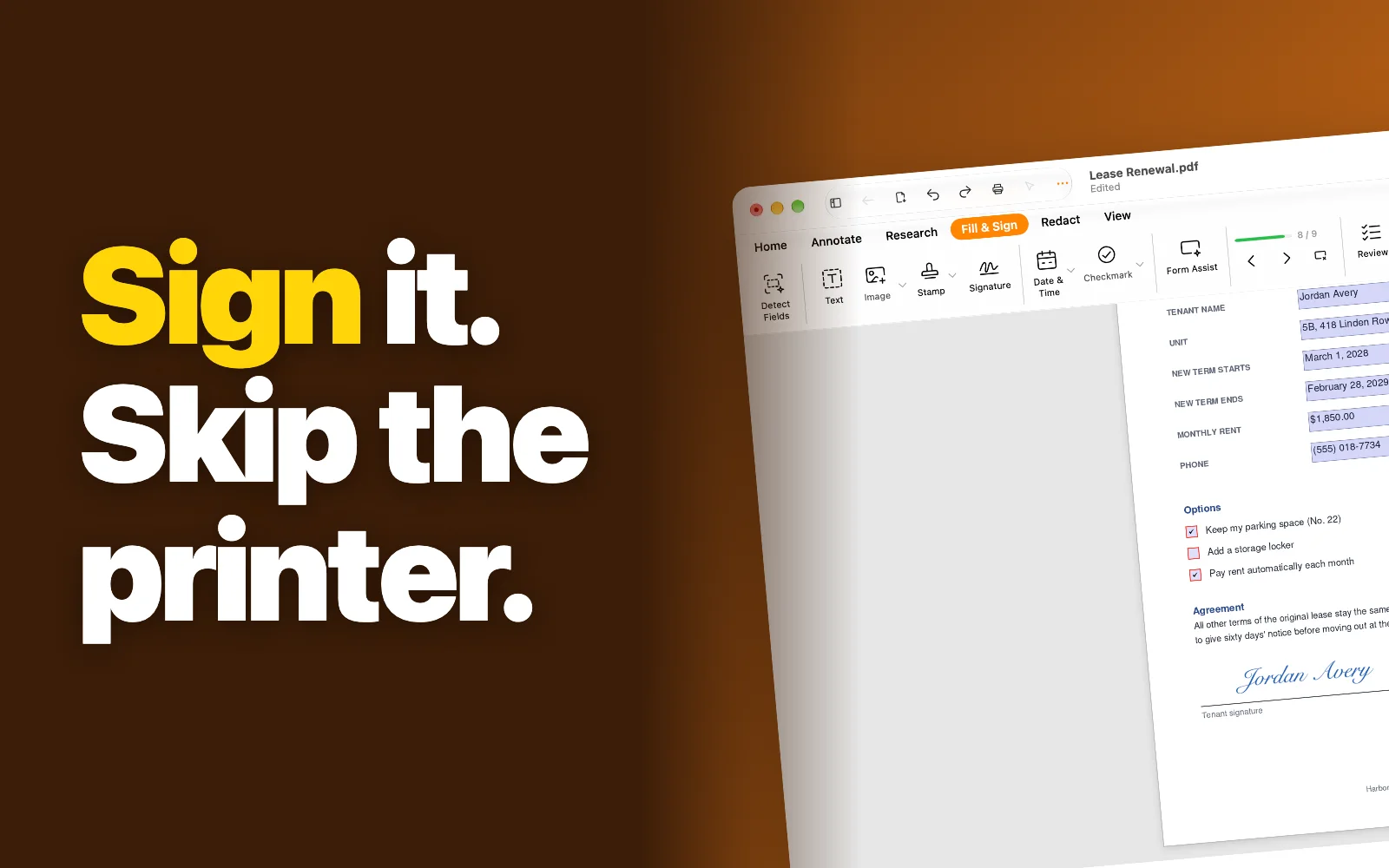
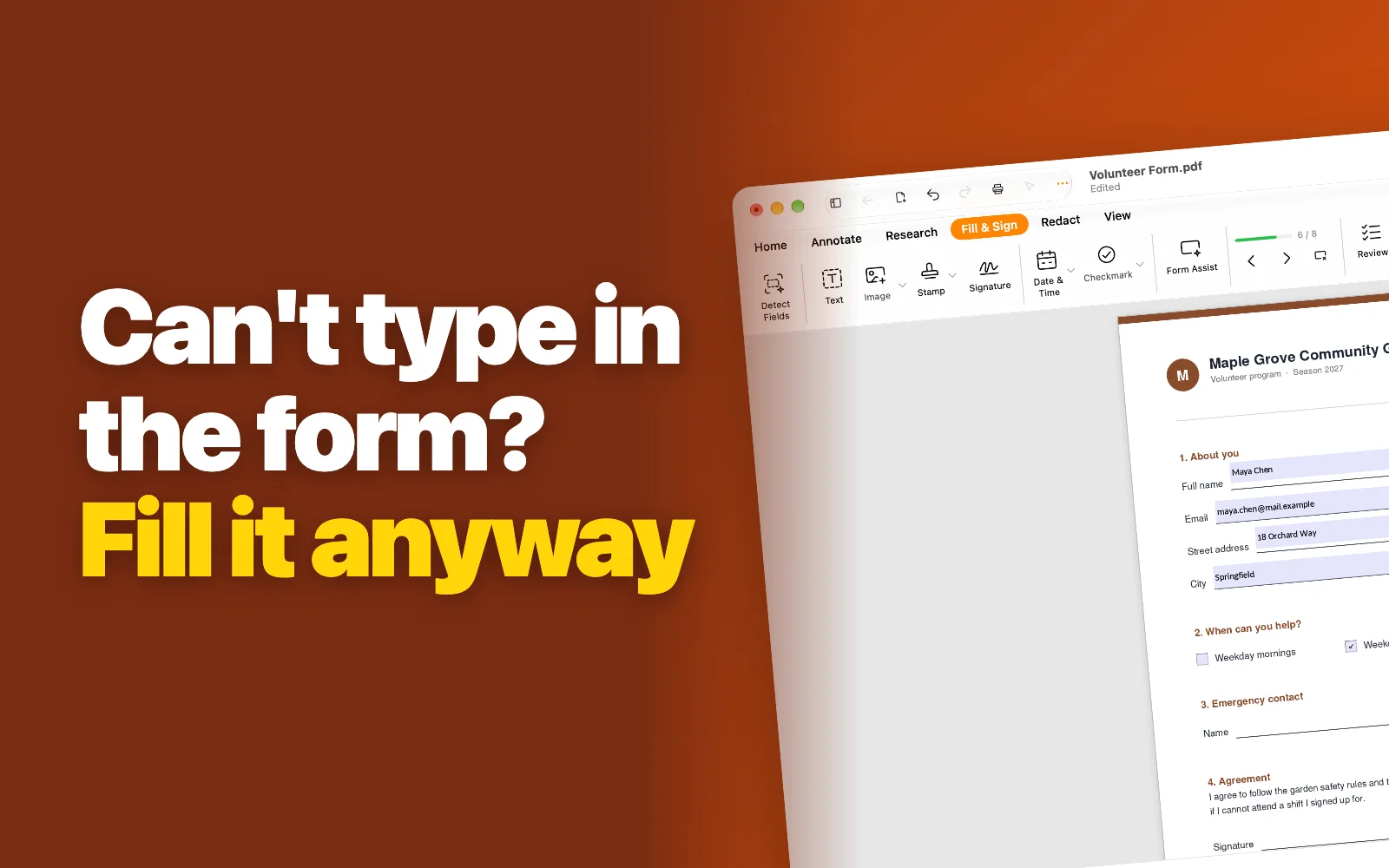
How to add a stamp, date or check mark to a PDF on Mac, iPhone and iPad
Mark a PDF as Approved, Draft or Confidential, drop in today's date, and tick or cross boxes on a form that has no fields. Steps for PDF Max, free on every plan.
Direct answer
How do I add a stamp, a date or a check mark to a PDF?
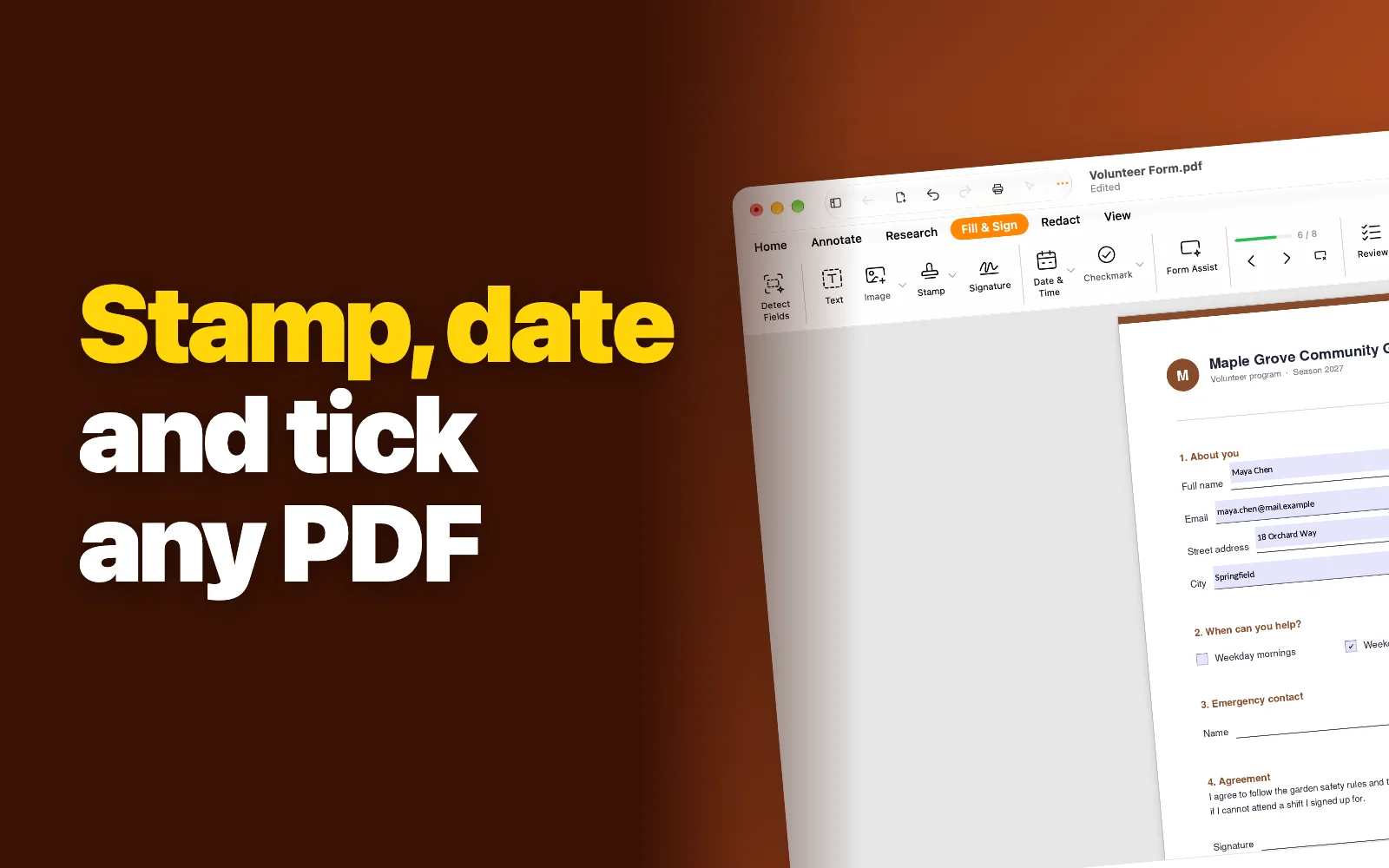
Open the PDF in PDF Max and go to the Fill & Sign tab. Choose Stamp to pick a ready-made stamp such as Approved, Draft, Confidential or Sign Here, then click the page to place it. Choose Date & Time to place today's date as text in the format you pick. Choose Checkmark, or Cross from its menu, and click each box to tick it. All three are included in PDF Max Free. Save a flattened copy before sending so the marks cannot move.
Three small jobs come up again and again with paperwork: marking a document Approved or Draft, writing today's date beside a signature, and ticking boxes on a form that was never made fillable. In PDF Max all three are on the Fill & Sign tab, and all three are free.
On iPhone the tab is labeled Fill. If you do not see it, tap the … button and look under Tabs. The tab is hidden while Edit PDF is turned on; turn that off on the Home tab.
Add a stamp
- Open the PDF and go to Fill & Sign.
- Choose Stamp. A gallery opens.
- Pick a stamp.
- Click or tap the page where it should go.
- Drag the stamp to move it, or drag a corner to resize it.
The ready-made stamps:
| Kind | Stamps |
|---|---|
| Status | Approved, Not Approved, Draft, Final, Void, Completed, Revised, Expired |
| Handling | Confidential, For Comment, For Public Release, Not For Public Release, Information Only, Preliminary Results |
| Signing | Sign Here, Initial Here, Witness |
| Marks | Green Check, Red Cross, Black Check, Black Cross |
| With today's date | Approved, Revised, Reviewed, Received |
The dated stamps record when they were placed, which suits incoming mail and review rounds.
Stamp is also on the Annotate and Home tabs. There it places the stamp you used last.
Use your own stamp
A company seal, a "Paid" graphic or a scanned ink stamp can be placed as an image.
- On Fill & Sign, choose Image.
- Choose Photo Library, or Stock Images….
- Click the page to place the picture, then move and resize it.
A PNG with a transparent background looks most like a real stamp, because the text under it stays visible.
Add today's date
- On Fill & Sign, choose Date & Time (Date on iPhone).
- Pick a format from the list. It shows today's date written several ways, such as short, long, and with the time.
- Click the page where the date belongs.
The date is placed as ordinary text, so you can move it, change its size or edit it if the form wants a different day.
Tick or cross a box
- On Fill & Sign, choose Checkmark. To use a cross, or a different color, open the menu beside the button and choose Green Check, Red Cross, Black Check or Black Cross.
- Click inside each box you want to mark.
- Resize a mark by dragging its corner if the boxes are small.
Use black marks on official forms. The green and red ones are for reviewing a list or grading.
If the PDF is a real fillable form, click its checkboxes directly. These marks are for forms with printed boxes and no fields.
Remove or change a mark
Select the stamp, date or mark and press Delete, or choose Delete on the Annotation tab that appears. This works until the PDF is flattened.
Lock the marks before you send
Stamps, dates and check marks are stored on top of the page. That is why you can still move them, and also why a simpler viewer might not show them. Before sending:
- Mac: choose File → Save as Flattened….
- iPhone and iPad: tap …, choose Document, then Save as Flattened….
Send the flattened copy and keep the original. See how to flatten a PDF.
What it costs
Stamps, dates, check marks, typed text and a one-time signature are included in PDF Max Free, and so is saving a flattened copy. Plans are compared on the features and plans page.
Common questions
Can I make a custom text stamp, such as my company name?
Ready-made stamps have fixed wording. For your own wording, place it as an image, or type it with Text on the same tab and choose a color and size.
Can Preview on Mac add a stamp?
Preview has text boxes, shapes and signatures, and no stamp gallery. You can type "APPROVED" in a text box and color it.
Will the date update automatically?
No. It is the date on the day you placed it, which is what a signed form needs.
Is a stamp the same as a signature?
No. A stamp marks the status of a document. To sign, see how to sign a PDF.