How to fill out a PDF form that isn't fillable on iPhone, iPad, and Mac
Can't type in a PDF form? Type your answers on top of it, or let PDF Max find the blanks and turn them into fields you can fill, then sign and send a clean copy.
Direct answer
How do you fill out a PDF form that is not fillable?
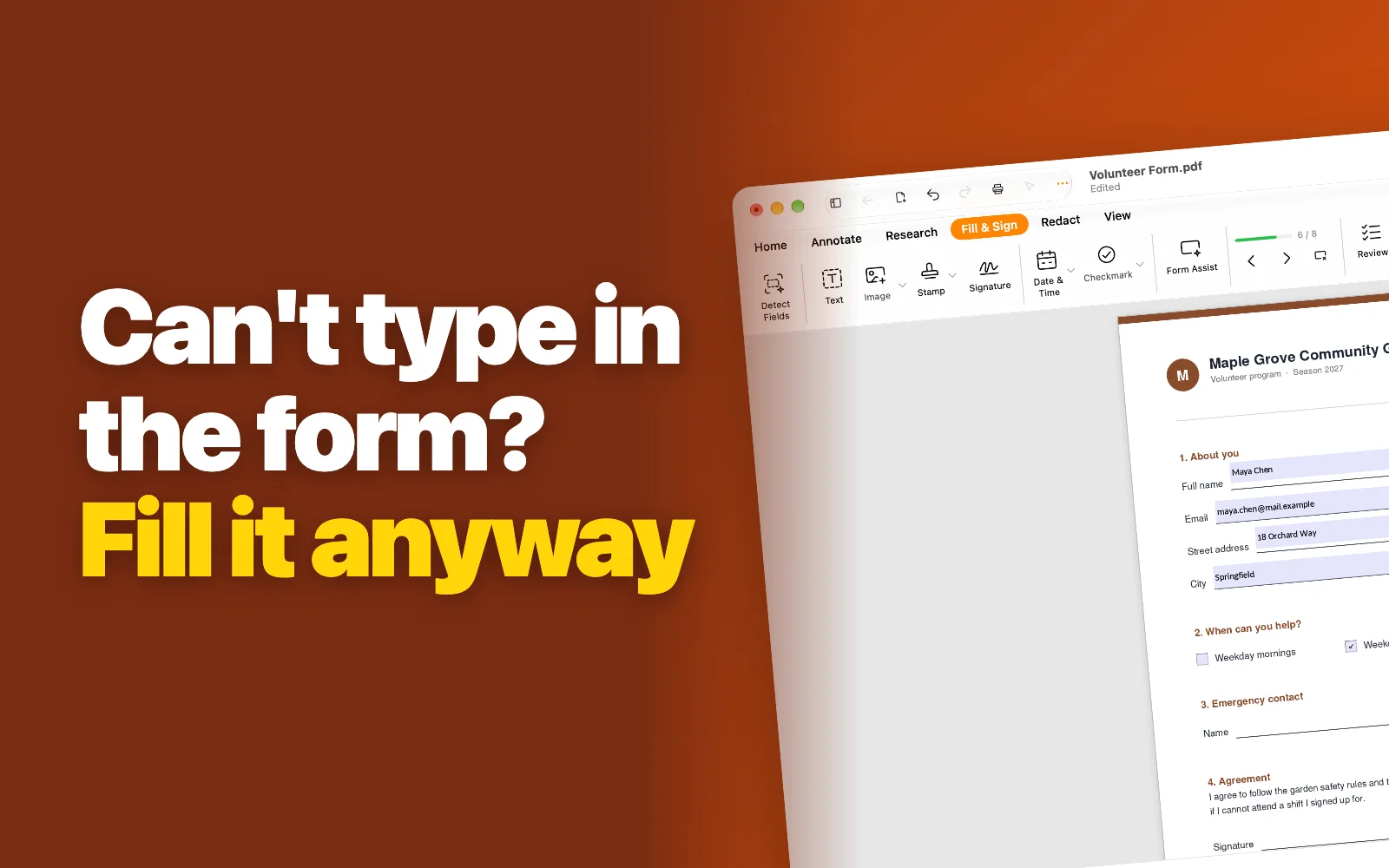
A form you cannot type in is a flat PDF: its lines and boxes are only printed on the page. You can still complete it in two ways. Type your answers on top with text boxes, check marks and a signature, using Preview on Mac, Markup on iPhone and iPad, or Fill & Sign in PDF Max. Or open Fill & Sign in PDF Max and choose Detect Fields, which finds the blanks, checkboxes and signature lines and turns them into fields you fill like a normal form.
You open a form, tap a blank line, and nothing happens. The form is not broken. It is a flat PDF: a scan, or a file exported without form fields, so the lines and boxes are only a picture of a form. You can still complete it on screen without printing it.
| What you have | Start here |
|---|---|
| A short form, one or two answers | Type on top of it |
| A long form with many blanks | Let PDF Max find the fields |
| A form you fill in again and again | Find the fields once, then reuse it |
| A form that should respond but does not | Check that it is really flat |
First, check that the form is really flat
Click or tap a blank. In a fillable form you get a cursor, a checkbox that toggles or a date picker. In Preview on a Mac, click the Form Filling button to show any fields.
If nothing responds anywhere, the form is flat. If only some pages respond, the file is mixed, and you can use the steps below for the flat pages.
Type your answers on top
This works in any PDF app and suits a short form.
- Mac, Preview: choose Tools → Annotate → Text, type, and drag the box onto the line.
- iPhone and iPad, Files: tap Markup, tap +, choose Add Text, then drag the box into place.
- PDF Max: open the Fill & Sign tab. Text places an answer where you tap, Checkmark ticks a box, Date & Time adds today's date and Signature adds your signature.
Zoom in before placing each answer so it sits on the printed line. The full steps are in how to type on a PDF and how to sign a PDF.
Let PDF Max find the fields
Placing twenty text boxes by hand is slow. Detect Fields reads the printed page, finds the blank lines, checkboxes and signature areas, and adds a real field on each one. The page is analyzed on your device.
- Open the form in PDF Max.
- Open the Fill & Sign tab.
- Choose Detect Fields and wait a moment.
- Look over the new fields. Each one is highlighted on the page.
- Fill the form: type in the text fields and tap the checkboxes. Next jumps to the next field that still needs an answer.
- Add your signature with Signature.
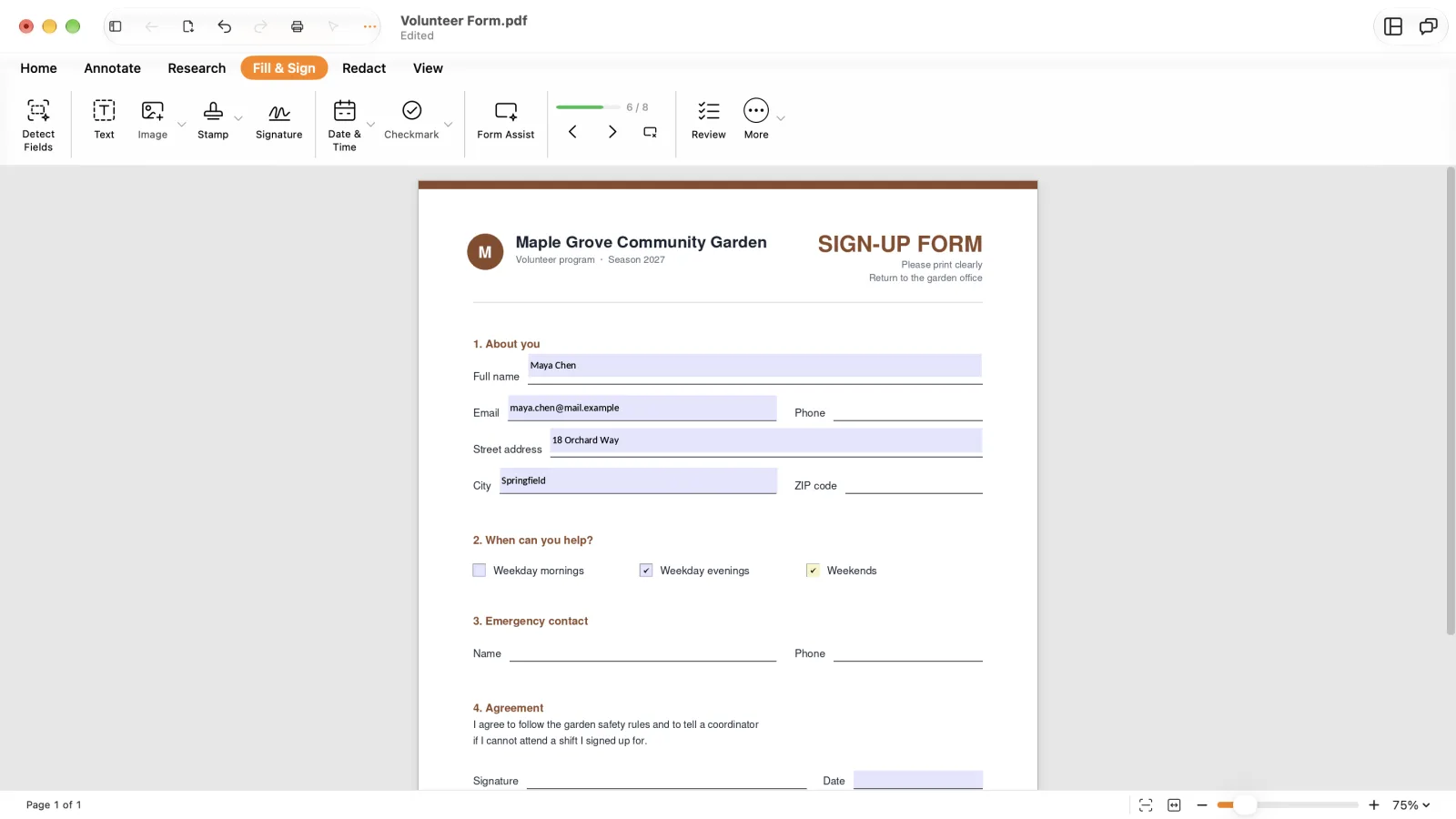
If the result is not useful, undo once and every detected field is removed. Fields the form already had are left alone.
Check what was found
Detection is a starting point. Before you rely on it:
- compare each field with the printed label beside it;
- look for blanks that were missed, and fill those with Text;
- check small boxes and tables, where fields can be too narrow or merged.
To add, resize or rename fields yourself, turn on Edit PDF and use the Forms tab. See how to make a PDF fillable.
Send a clean copy
Answers and detected fields stay editable, so the person who receives the form could change them. When the form is complete, save a flattened copy and send that one. See how to flatten a PDF.
Keep the unflattened file if you will fill the same form again. The detected fields are saved with it, so next time you only change the answers.
What it costs
Typing answers, check marks, dates and a one-time signature on a flat form is included in PDF Max Free, and so is saving a flattened copy. Detect Fields needs Premium. Preview and Markup are part of macOS, iOS and iPadOS. Plans are compared on the features and plans page.
Common questions
Why can't I type in my PDF form?
The form has no form fields. It was scanned from paper or exported as a plain page, so the blanks are printed artwork. Add text on top of it, or detect the fields first.
Can I fill out a scanned form on my iPhone?
Yes. In the Files app, tap Markup and add text boxes. In PDF Max, open Fill & Sign and place text, check marks and a signature, or use Detect Fields to create fields for the whole page.
Do I need to print the form and scan it back?
No. Fill it on screen, sign it on screen and send the PDF.
Will the other person see my answers correctly?
Yes, after you send a flattened copy. Flattening makes the answers part of the page, so they look the same in every PDF app.