School newsletters and flyers after Publisher: a guide for staff
For teachers and school offices that used Microsoft Publisher: open existing .pub newsletters and flyers, reuse them each term, and start new ones from school designs.
Direct answer
What can schools use for newsletters and flyers now that Microsoft Publisher is retired?
Use a page-layout app that opens the Publisher files your school already has. Mobeera Office opens .pub newsletters, flyers and certificates on Mac, Windows, iPhone, iPad and Android and keeps them editable, so staff can reuse them each term. It includes ten school starter designs, mail merge for certificates and letters, and PDF export for the school website. It is a one-time purchase.
Schools were some of Publisher's most loyal users. The weekly newsletter, the sports day flyer, the certificates at the end of term and the prospectus were often Publisher files passed from one member of staff to the next. Microsoft retired Publisher in October 2026, and those files are still on the shared drive.
What happened to the Publisher files on our shared drive?
Nothing. They are still there. What changed is that Microsoft 365 no longer includes Publisher, so staff cannot open the files with it.
Can we still open and reuse them?
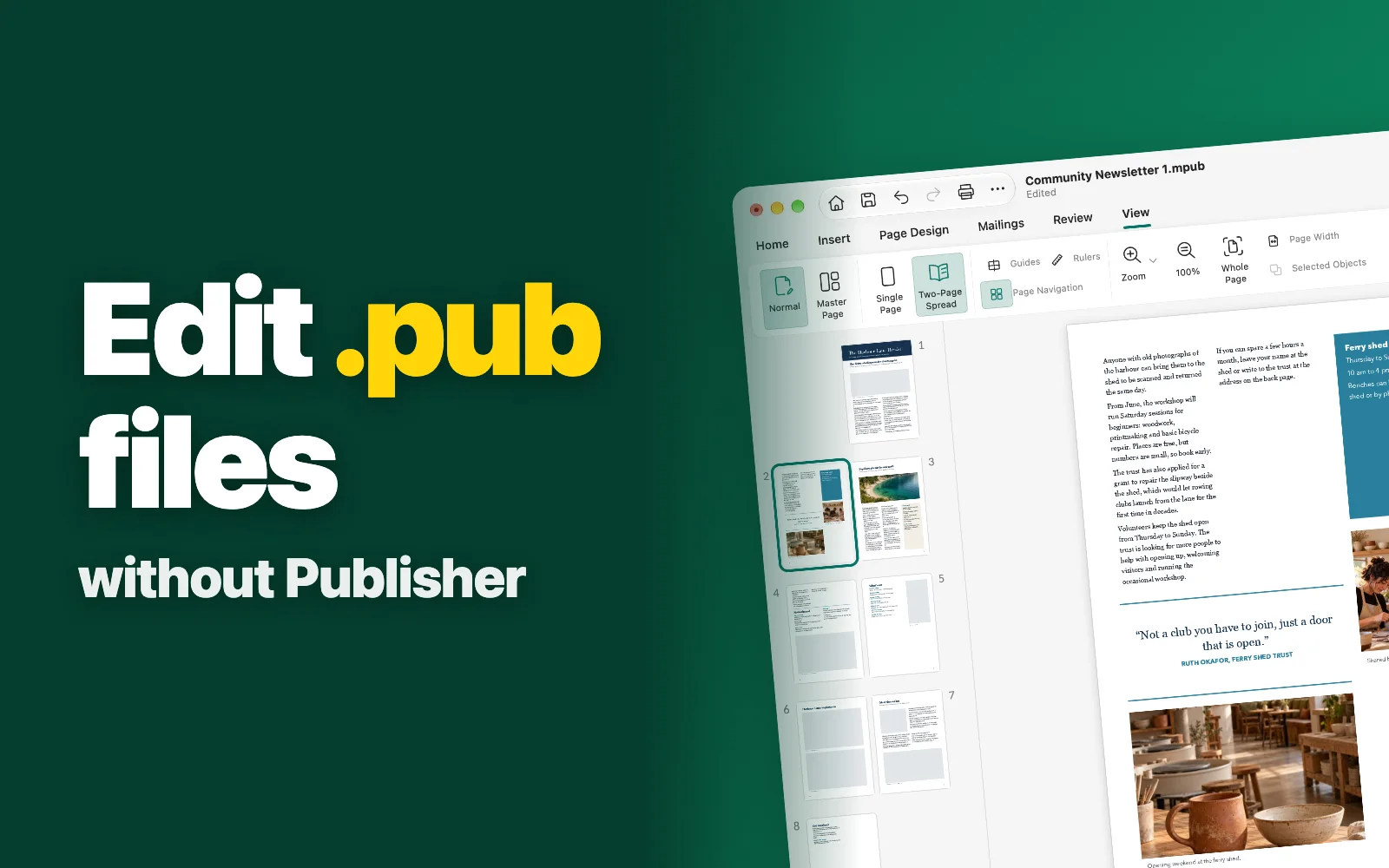
Yes. Mobeera Office opens .pub files on Mac, Windows, iPhone, iPad and Android. Text boxes, tables, pictures and master pages stay editable, so last term's newsletter becomes this term's starting point. The original files are not changed.
To move a publication over:
- Open the
.pubfile in Mobeera Office. On a Mac, right-click it in Finder and choose Open With. On an iPad, save it to Files and tap Open on the Home tab. - Open Review → Design Checker. It lists missing fonts and text that does not fit, the two things most likely to differ on a new device.
- Fix what it finds, then save. The publication is kept as a
.mpubfile you can share with colleagues.
What can we start from if we want something new?
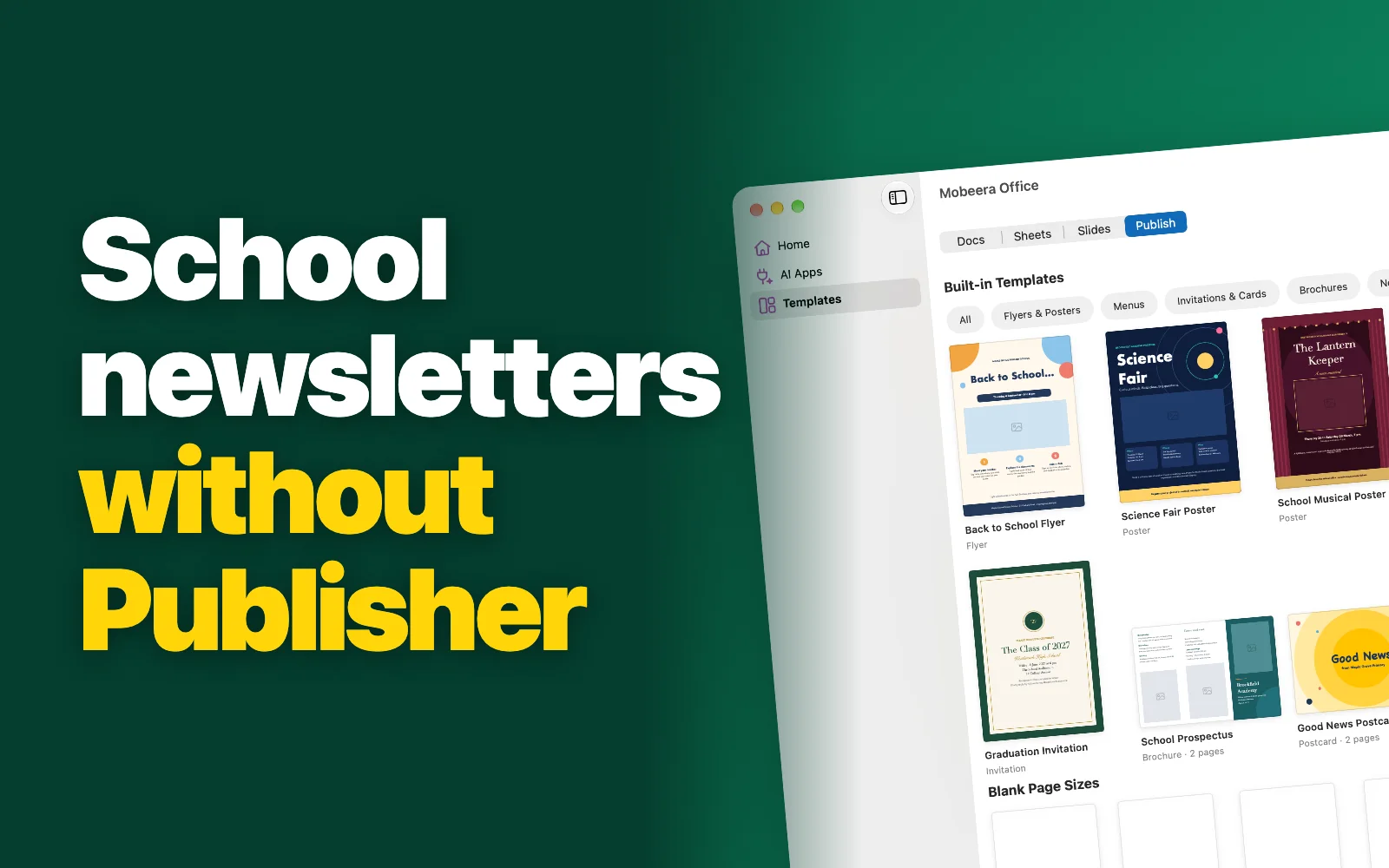
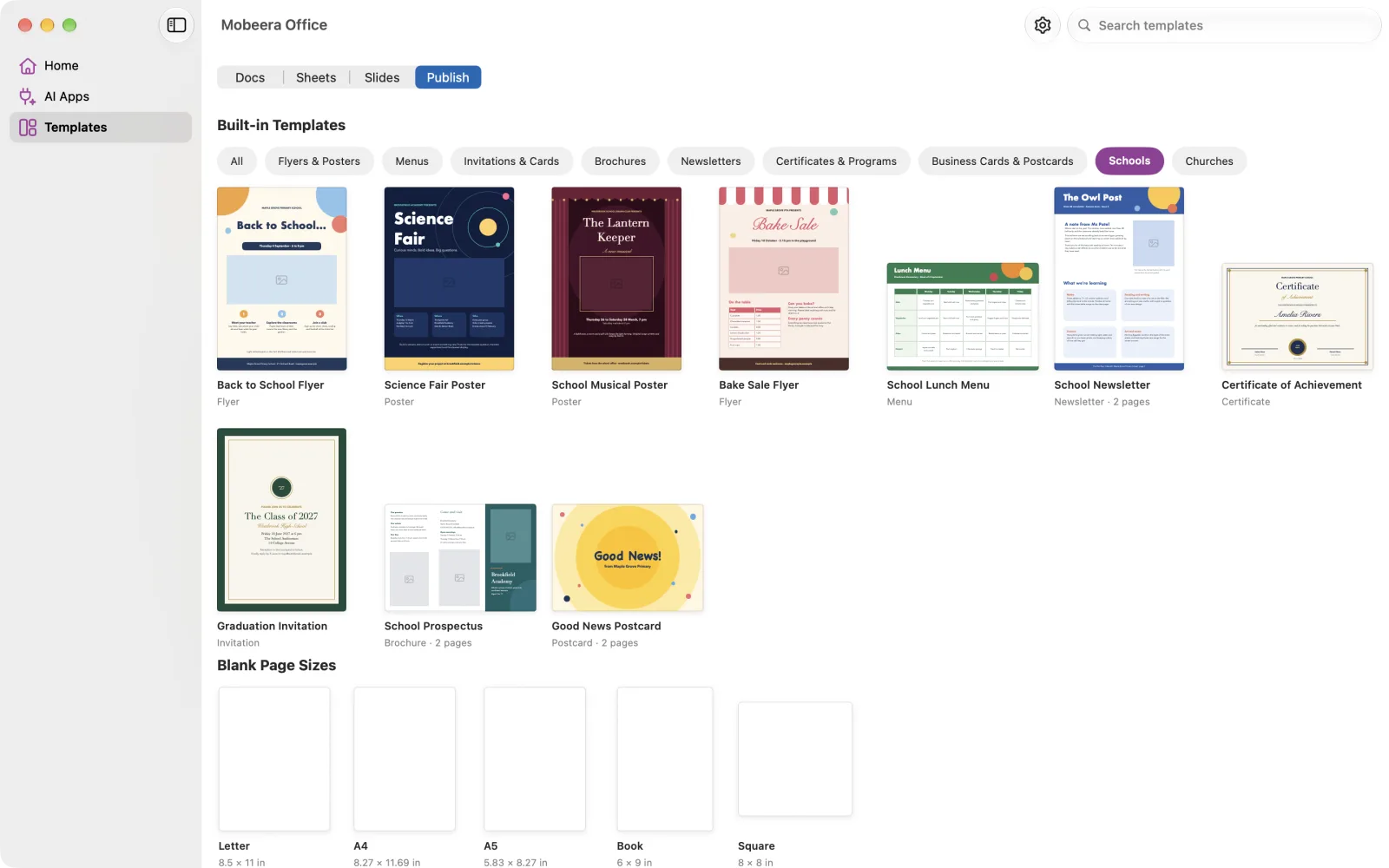
The template gallery has a Schools category with ten designs:
- School Newsletter
- Back to School Flyer
- Science Fair Poster
- School Musical Poster
- Bake Sale Flyer
- School Lunch Menu
- Certificate of Achievement
- Graduation Invitation
- School Prospectus
- Good News Postcard
Each comes in US Letter and A4 sizes.
How do we make a certificate for every pupil?
Use mail merge, as in Publisher.
- Open the certificate and go to the Mailings tab.
- Choose Select Recipients, then Type a New List… or Use an Existing List….
- Click where the name goes and choose Insert Merge Field.
- Use Preview Results to step through the names.
- Choose Finish & Merge, then Merge to Printer… or Merge to PDF….
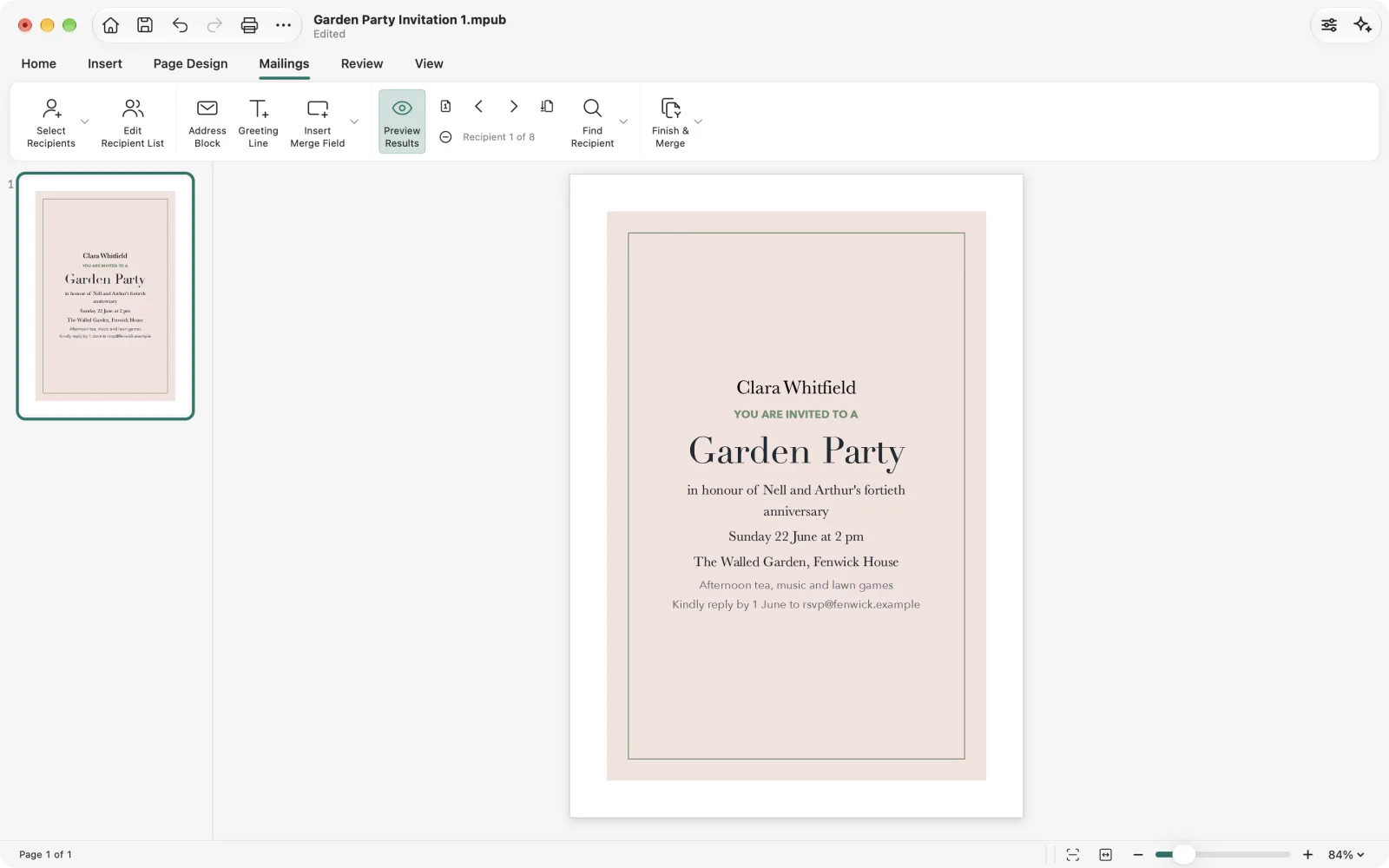
The same steps address letters home and make name labels.
How do we share the newsletter with parents?
- Email or the school website: choose Export as PDF…. Minimum Size keeps the file small for email.
- Social media or a messaging app: choose Export Pages as Pictures… for PNG or JPEG images.
- Paper: File → Print… prints both sides and can fold a multi-page newsletter into a booklet with Booklet, side-fold.
Can we update it from a phone, or let AI draft it?
Yes to both, which Publisher never offered.
- From a phone or tablet. The Publish editor runs on iPhone, iPad and Android as well as Mac and Windows. A last-minute change no longer waits for whoever has the office computer.
- With your AI. On a Mac, connect an AI app such as Claude or ChatGPT and ask for the flyer or newsletter you need; it starts from a design, fills in your text and leaves a publication you can edit. AI Chat inside the editor works on Mac, iPhone and iPad with your own API key. See how to connect your AI app.
Does it work on the devices we have?
The Publish editor runs on Mac, Windows, iPhone, iPad and Android, and opens .pub files on all of them, including school Windows computers. LibreOffice Draw is a free alternative that opens files from Publisher 98 to 2010 as drawings.
What does it cost?
Opening a publication to read it is free, which lets staff check how existing files look. Editing, printing and PDF export need lifetime access, bought once. The same app also edits Word, Excel, PowerPoint and PDF files.
Common questions
Are pupil names sent anywhere during mail merge?
Mail merge is done by the app on your device. It does not need an online service.
Can pupils use it for projects?
Yes. Posters, leaflets and class newspapers are the same kind of page layout.
What about old files nobody edits any more?
Make PDFs and keep them as the archive. On a Mac you can convert a whole folder at once. See how to convert .pub files to PDF.