How to add a blank page to a PDF on Mac, iPhone and iPad
Insert a blank page, a lined or grid page, or pages from another file into a PDF with Preview on Mac, the Files app on iPhone and iPad, or PDF Max.
Direct answer
How do you add a blank page to a PDF on a Mac, iPhone or iPad?
On a Mac, open the PDF in Preview, choose View, Thumbnails, select the page before the gap and choose Edit, Insert, Blank Page. On an iPhone or iPad, open the PDF in Files, show the page thumbnails, touch and hold a page and choose Insert Blank Page. In PDF Max, choose Edit PDF, open Pages and tap Insert Page to add a blank or template page before or after the current one.
A blank page gives you room for notes, a divider between sections, or the back of a sheet when you print on both sides. You can add one without rebuilding the PDF.
| Where you are working | Start here |
|---|---|
| Mac, built-in Preview | Insert a page in Preview |
| iPhone or iPad, built-in Files | Insert a page in Files |
| You want lined, grid or dotted paper | Insert a template page in PDF Max |
| You want pages from another PDF | Add pages from another file |
Work on a copy. Adding a page changes the page numbers that bookmarks, links and a table of contents point to.
Insert a blank page in Preview on Mac
- Open the PDF in Preview.
- Choose View → Thumbnails to show the pages in the sidebar.
- Select the page that should come before the new one.
- Choose Edit → Insert → Blank Page.
- Drag the new thumbnail if it needs to go somewhere else, then save.
Insert a blank page in Files on iPhone and iPad
- Open the PDF in the Files app.
- Show the page thumbnails. On iPhone, swipe in from the left edge of the page.
- Touch and hold the page next to where the new one should go.
- Choose Insert Blank Page.
- Tap Done.
Insert a blank or template page in PDF Max
PDF Max adds a plain page or a ready-made paper, such as lined, grid or dotted, which is useful when the new page is for handwriting.
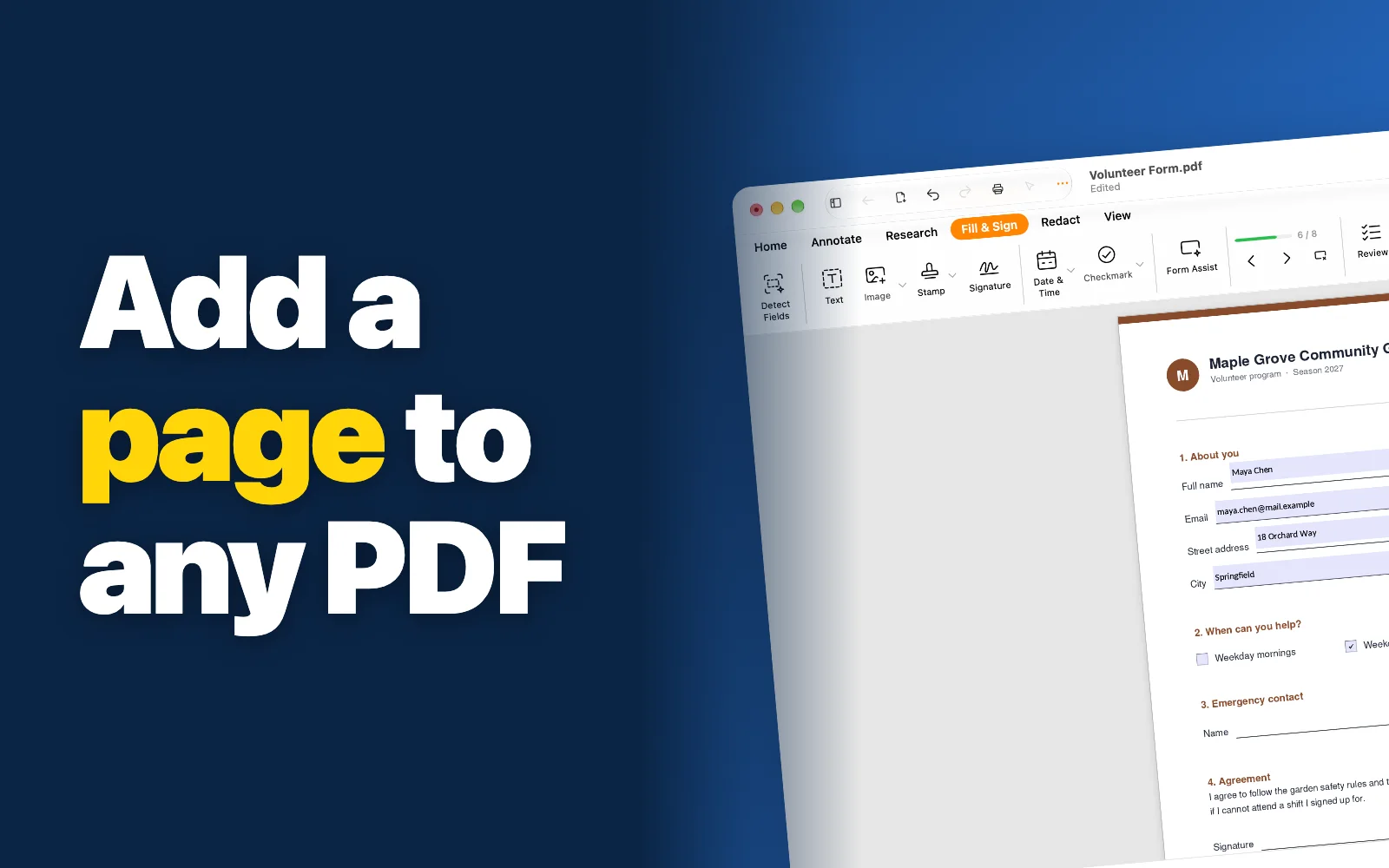
- Open the PDF, choose Edit PDF, then open Pages.
- Tap Insert Page to add a page after the one you are on. Tap the arrow beside it to choose Before Page or After Page.
- Pick the paper and tap to insert it.
- Check the page indicator to confirm the new page is where you expected.
The same place has Delete Page, Duplicate Page, Extract Page and Replace Page.
Add pages from another file
- Preview: select a thumbnail, then choose Edit → Insert → Page from File and pick the other PDF. You can also drag thumbnails from one Preview window into another.
- Files: touch and hold a thumbnail and choose Insert from File, or Scan Pages to add a paper page with the camera.
Check the result
Close the file and open it again, then check:
- the page count went up by the number you added;
- the new page is the same size and orientation as its neighbors, or resize it;
- bookmarks and internal links still go to the right pages;
- page numbers printed on the pages still run in order.
What it costs
Inserting blank or template pages in PDF Max needs PDF Max Pro. Preview and Files are part of macOS, iOS and iPadOS.