How to strike through or underline text in a PDF on Mac, iPhone and iPad
Cross out or underline words in a PDF with Preview on Mac or PDF Max on Mac, iPhone and iPad, switch to a squiggly underline, change the color and remove marks.
Direct answer
How do I strike through or underline text in a PDF?
On a Mac in Preview, select the text, then choose Tools, Annotate, and Strikethrough Text or Underline Text. In PDF Max on Mac, iPhone or iPad, open the Annotate tab, choose Strikeout or Underline and drag across the words; or select the text first and pick the mark from the menu. The marks sit on top of the text, so the original wording stays readable and the mark can be recolored or deleted later.
A strikethrough says "take this out" and an underline says "look at this" without changing the document. Both are annotations: the author's text stays as it was, and your mark is laid over it. That makes them the standard way to review a contract, proofread a draft or mark up a reading.
| Where you are working | Start here |
|---|---|
| Mac, with the built-in Preview app | Preview |
| iPhone or iPad | PDF Max |
| You want a squiggly line | Squiggly underline |
| The words will not select | Scanned pages |
Strike through or underline in Preview on Mac
- Open the PDF in Preview.
- Select the text.
- Choose Tools → Annotate → Strikethrough Text or Underline Text.
To mark many passages, click the arrow beside the Highlight button in the toolbar and choose the underline or strikethrough style. The button stays on, and every selection you make is marked until you click it again.
To remove a mark, Control-click the text and choose Remove Underline or Remove Strikethrough.
Strike through or underline in PDF Max
The steps are the same on Mac, iPhone and iPad.
Tool first, for several passages:
- Open the PDF in PDF Max and go to the Annotate tab.
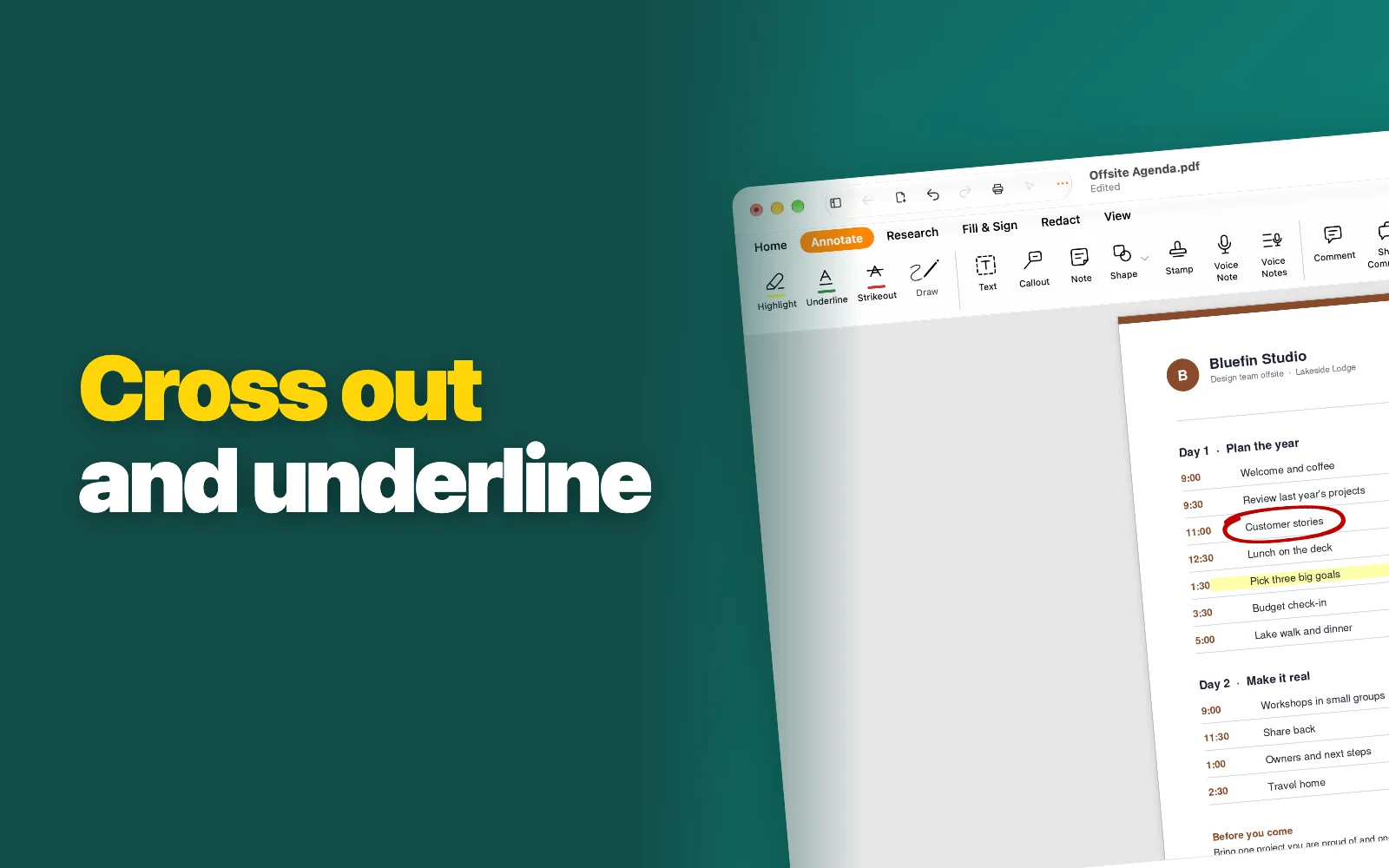
- In the Markup group, choose Strikeout or Underline.
- Drag across the words. The tool stays on, so keep marking.
- Choose Done when you finish.
Text first, for one passage:
- Select the text.
- Choose Strikeout or Underline from the menu that appears. On iPhone and iPad it is the menu above the selection; on a Mac, right-click the selection.
On a Mac, the Annotate menu has keyboard shortcuts: Control-Command-U for underline, Control-Command-K for strikethrough and Control-Command-H for highlight.
Change the color
Select the mark. The Annotation tab appears; choose Color and pick one. Markup lines have a color and no separate thickness setting.
A simple convention helps when several people review the same file: red strikethrough for deletions, blue underline for questions, and each reviewer keeps to one color.
Use a squiggly underline
A wavy line is the proofreader's mark for "check this" and is easy to tell apart from a plain underline.
- Underline the text.
- Select the underline.
- On the Annotation tab, set Style to Squiggly. On iPhone the choice is in the Color menu, under Underline Style.
Remove a mark
Select it and choose Delete on the Annotation tab, or press Delete on a keyboard. Undo also removes the mark you just made.
Say what should replace it
A strikethrough shows what to remove, not what to put there. Select the same text, choose Add Comment from the menu and type the replacement wording. The author then sees the deletion and the suggestion together. See how to add, reply to and resolve PDF comments.
If the text will not select
The page is a scan: a picture of text with no letters in it. Text markup needs real text. Run text recognition first, with Tools → Recognize Text in PDF Max, and then mark the text. See how to make a scanned PDF searchable. Without it, you can still draw a line by hand with Draw on the same tab.
Strikethrough is not deletion
Crossed-out text is still in the file. Anyone can read it, copy it and search for it.
- To take words out of the document, edit the text: see how to edit text in a PDF.
- To remove sensitive information for good, redact it: see how to permanently redact a PDF.
What it costs
Highlight, underline, strikeout and comments are included in PDF Max Free. Preview is part of macOS. Recognize Text is part of PDF Max Premium.
Common questions
Will other people see my marks?
Yes, in any full PDF app. To make sure they show everywhere, including simple viewers, send a flattened copy: see how to flatten a PDF.
Can I strike through text on iPhone without an extra app?
Markup in Files can draw a line with the pen. It has no strikethrough that follows the text, so the line will not stay aligned if you draw it by hand.
Is "strikeout" the same as "strikethrough"?
Yes. PDF Max labels the button Strikeout; Preview calls it Strikethrough.