How to convert photos to a PDF on iPhone
Turn one photo or several into a single PDF on iPhone: the built-in Files and Print methods, and Images to PDF in PDF Max with cropping, page order and paper size.
Direct answer
How do I convert photos to a PDF on my iPhone?
In the Files app, select the images, tap the More button and choose Create PDF; several images become one PDF in the order of their file names. From the Photos app, share the photos to Print, zoom the preview with two fingers and share the result to Files. For control over order, cropping and paper size, use Images to PDF in PDF Max: add the photos, arrange and crop the pages, choose a page size and tap Create PDF.
Receipts for an expense claim, pages of a signed contract, photos of an ID: the person asking usually wants one PDF, not six separate pictures. An iPhone can make that PDF without any extra app, and a dedicated tool helps when the order, the edges or the page size matter.
| You want | Use |
|---|---|
| One PDF from a few images, quickly | Files: Create PDF |
| A PDF straight from the Photos app | Photos: Print |
| To set the order, crop edges, choose A4 or Letter | PDF Max: Images to PDF |
| A PDF of a paper document | Scan it instead |
Create a PDF in the Files app
The images have to be in Files first.
- In Photos, select the pictures, tap Share and choose Save to Files. Pick a folder.
- Open Files and go to that folder.
- Tap the More button (…), choose Select, and tap each image.
- Tap the More button at the bottom and choose Create PDF.
Files makes one PDF in the same folder. For a single image, touch and hold it and choose Quick Actions → Create PDF.
Pages follow the order of the file names, not the order you tapped. To control the order, rename the images first: 1 front, 2 back, and so on.
Make a PDF from the Photos app
- In Photos, select the pictures and tap Share.
- Choose Print.
- On the print preview, spread two fingers on a page thumbnail. The preview opens as a PDF.
- Tap Share and choose Save to Files.
This gives one photo per page in the order you selected them. Each photo is fitted to the paper size, with white margins around it.
Use Images to PDF in PDF Max
Use this when the pages need to look like a document.
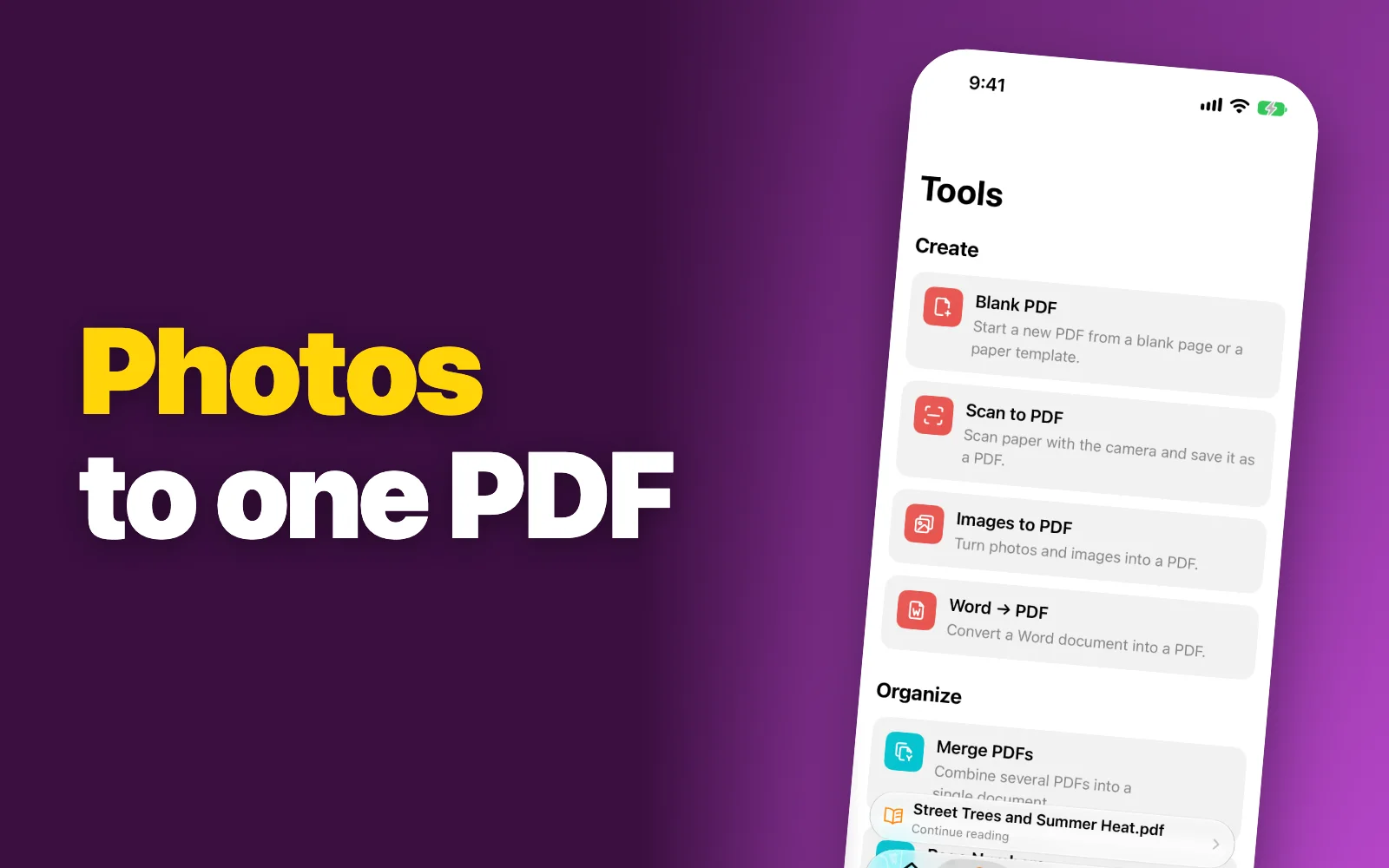
- Open PDF Max. On Home, tap Images to PDF.
- Tap Add Images and choose Photo Library or Files. JPEG, PNG and HEIC images are accepted.
- Arrange the pages. Drag to reorder. For each page you can Crop, Rotate Left or Rotate Right, and Delete.
- Pick a filter if it helps: Original, Auto, Color, Grayscale or B&W. Grayscale or B&W makes photographed paper cleaner and the file smaller.
- Tap Next to open Save Options:
- File Name
- Page Size: Match Image, A4 or US Letter
- Image Quality: High, Balanced or Smaller File
- Searchable PDF (OCR): recognizes the text so the PDF can be searched
- Tap Create PDF. The PDF is saved to My Files, ready to share.
Choose A4 or US Letter when the PDF will be printed or uploaded to a portal that expects standard pages. Choose Match Image to keep each photo edge to edge.
Images to PDF is free for a PDF of up to two pages. Longer PDFs and the searchable-text option are part of Premium; plans are on the features and plans page.
The same tool is on iPad and on Mac, where you can also drop image files onto the window.
Photos of paper: scan instead
If you are about to photograph a paper page, scan it. A scan straightens the page, crops the background and evens out shadows, which a photo does not. See how to scan a document to PDF on iPhone and iPad.
Keep the file small
Phone photos are large, and a PDF made from ten of them can pass 30 MB.
- Choose Smaller File or Balanced quality for documents.
- Use Grayscale or B&W for text on paper.
- If the PDF is already made, see why a PDF is too large to email.
Common questions
How do I convert a HEIC photo to PDF?
The same way. All three methods accept HEIC, the format the iPhone camera uses.
Can I add more photos to the PDF later?
In Files, make a new PDF from all the images. In PDF Max, open the PDF and insert pages, or merge two PDFs; those page tools are part of the paid plans.
Why are my pages sideways?
The photo was taken with the phone turned. In PDF Max, rotate the page before creating the PDF. For a finished PDF, see how to rotate PDF pages and save permanently.
Does this work on iPad?
Yes. Files, Photos and PDF Max work the same way on iPad.