How to scan a document to PDF on iPhone and iPad
Scan paper to a clean PDF with the iPhone or iPad camera: the built-in scanner in Files and Notes, and Scan to PDF in PDF Max with batch capture, crop and searchable text.
Direct answer
How do I scan a document to PDF on an iPhone or iPad?
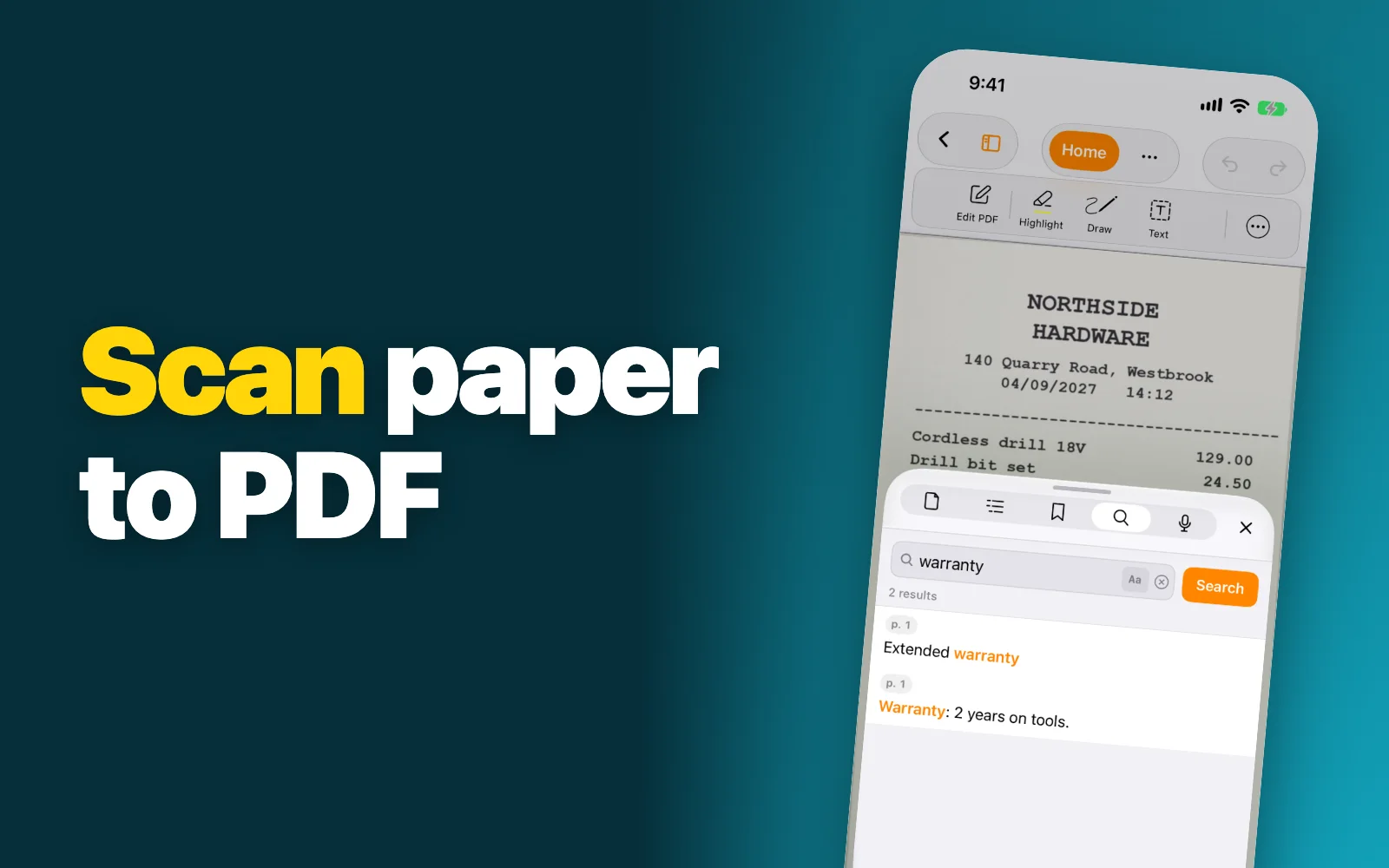
Open the Files app, tap the More button and choose Scan Documents. Hold the phone over the page; it captures automatically, and you tap Save to get a PDF. Notes has the same scanner. For multi-page jobs where you want to reorder and crop pages, pick a paper size and make the text searchable, use Scan to PDF in PDF Max: capture the pages, review them, set the save options and tap Create PDF.
The camera in an iPhone or iPad is a better scanner than most office machines were ten years ago. A proper scan finds the edges of the page, straightens it and removes shadows, so the result looks like a document and not like a photo of one.
| You want | Use |
|---|---|
| A quick scan saved as a PDF | Files |
| A scan inside a note | Notes |
| Several pages, reordered and cropped, with searchable text | PDF Max |
Get a good scan
These matter more than the app.
- Put the page on a darker, plain surface, so its edges are easy to find.
- Use even light from the side. Overhead light throws the shadow of your hands and phone onto the page.
- Hold the device directly above the page and keep it still.
- Flatten folds, and remove staples from stacks you will scan one page at a time.
Scan with the Files app
- Open Files and go to the folder where the PDF should be saved.
- Tap the More button (…) and choose Scan Documents.
- Hold the device over the page. In automatic mode it captures when the page is in view. Otherwise tap the shutter button, drag the corners to fit the page and tap Keep Scan.
- Scan the next pages the same way.
- Tap Save.
The scan is saved as a PDF in that folder.
Scan with Notes
- Open a note.
- Tap the attachment (paperclip) button and choose Scan Documents.
- Capture the pages and tap Save.
The scan sits inside the note. To get a PDF file, touch and hold the scan, choose Share and then Save to Files.
Scan with PDF Max
Use this for longer documents, or when the scan must be searchable or a standard paper size.
- Open PDF Max. On Home, tap Scan to PDF.
- Choose how to capture:
- Auto-capture takes the picture when the page is steady; Manual waits for you.
- Batch keeps the camera open for the next page; Single stops after one.
- The mode can be Document, Photo or Book.
- Capture each page.
- Review the pages. Drag to reorder. For each page you can adjust the Crop, Rotate Left or Rotate Right, Delete, and choose a filter: Original, Auto, Color, Grayscale or B&W.
- Tap Next to open Save Options:
- File Name
- Page Size: Match Image, A4 or US Letter
- Image Quality: High, Balanced or Smaller File
- Searchable PDF (OCR)
- Tap Create PDF. The PDF is saved to My Files.
Scan to PDF is on iPhone and iPad. It is free for a PDF of up to two pages; longer scans and Searchable PDF (OCR) are part of Premium. Plans are on the features and plans page.
Which settings to choose
| Document | Filter | Quality |
|---|---|---|
| Typed letter, contract, form | B&W or Grayscale | Balanced |
| Receipt, faded print | Grayscale | High |
| Page with color charts, ID card, certificate | Color | High |
| Something to email today | Grayscale | Smaller File |
Grayscale files are much smaller than color ones, and text is usually easier to read.
Make the scan searchable
A plain scan is a picture of text. You cannot search it or copy from it. Turn on Searchable PDF (OCR) when you create the PDF, or run text recognition afterwards: see how to make a scanned PDF searchable.
After scanning
- Sign it or fill it in. A scanned form has no fields, but you can type on it and sign: see how to fill out a form that is not fillable.
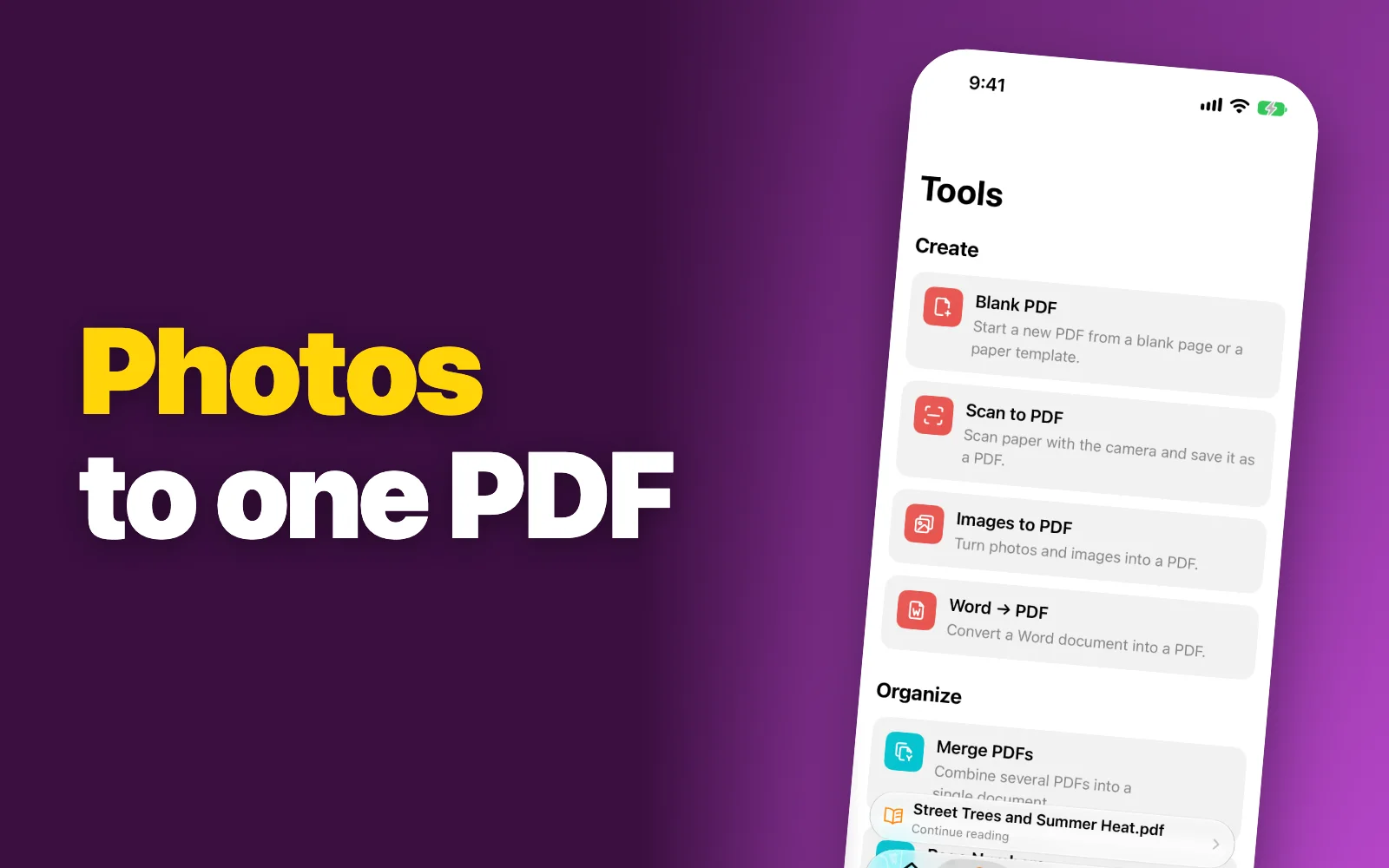
- Check the size. If it is too big to email, see why a PDF is too large to email.
- Name it properly.
2026-11 electricity bill.pdfis easier to find next year thanScan 14.pdf.
Common questions
Is a phone scan good enough for official documents?
For most forms, applications and records, yes. Check any requirement for resolution, color or file size before you submit, and look at the PDF at full zoom first.
Can I scan with a Mac?
A Mac can use a nearby iPhone or iPad as its scanner: in Finder or a supported app, choose Import from iPhone or iPad → Scan Documents. Scan to PDF in PDF Max is on iPhone and iPad.
How do I scan a two-sided page?
Scan the front, turn the page and scan the back. With batch capture both land in one PDF, in order.
I already took photos. Can I use those?
Yes. See how to convert photos to a PDF on iPhone.